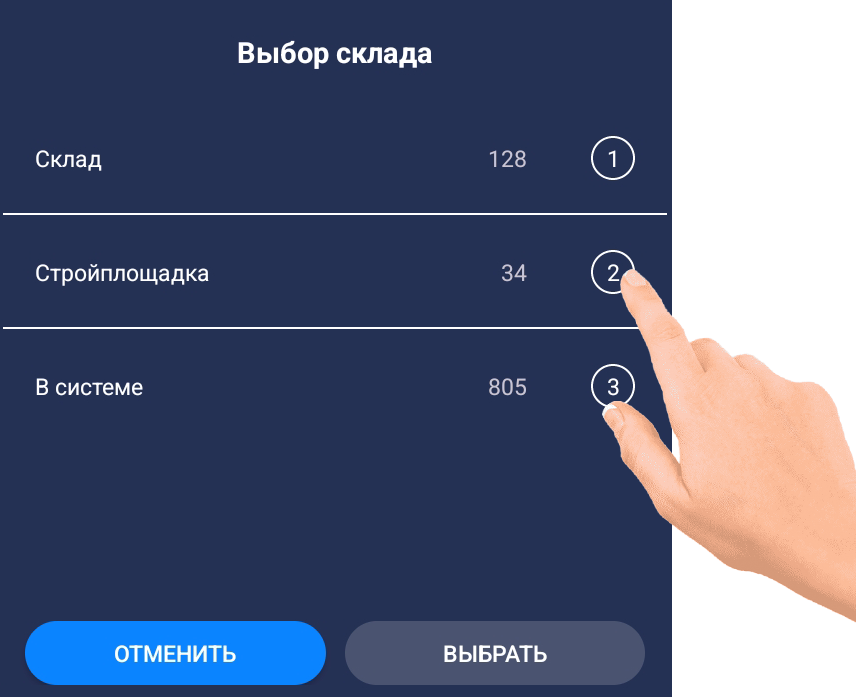
Transportation
In the Transportation mode, you can:
- Enter information about vehicles.
- Load items into a vehicle and unload them.
Adding/Removing a Vehicle
HOW TO ADD A VEHICLE
Add via License Plate Scan
Adding a new vehicle is only available in “TRANSPORTATION” mode (from the project main window).
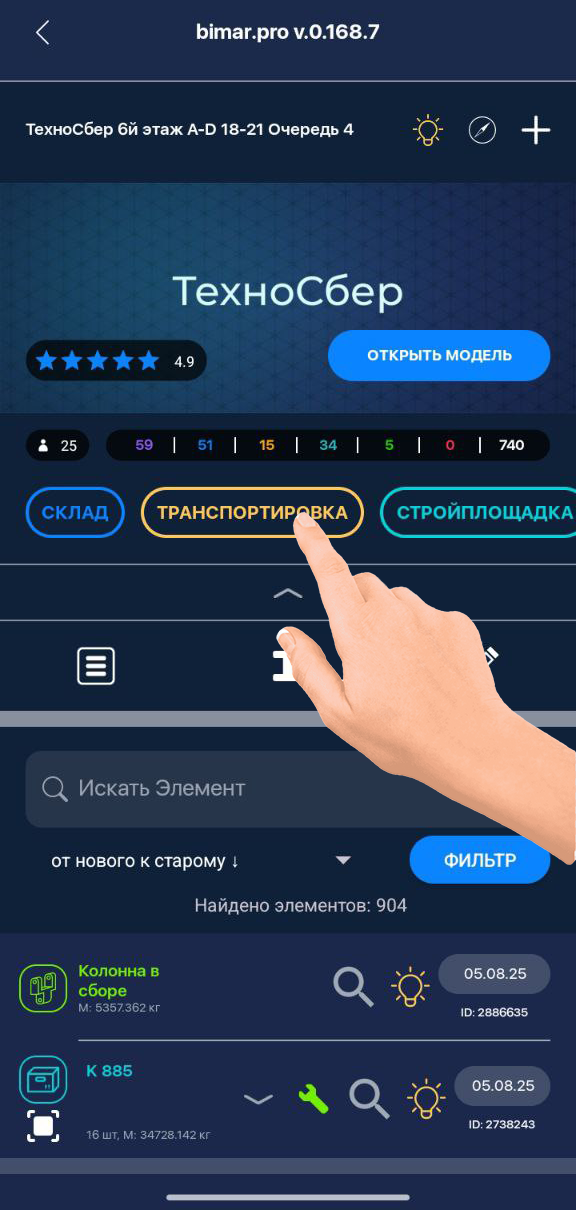
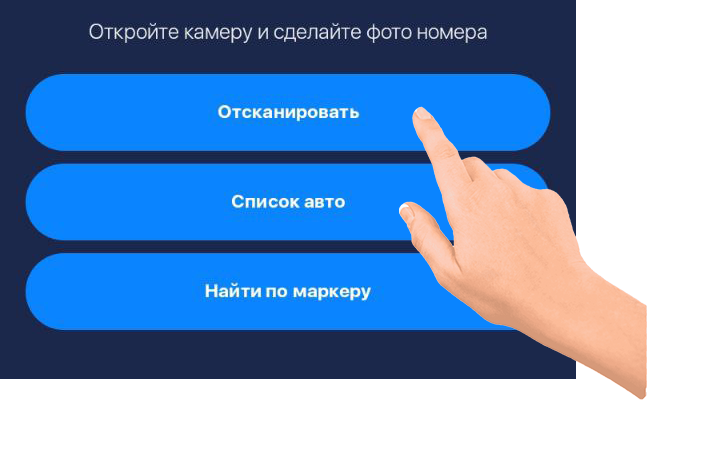
To add a new vehicle, scan its license plate or enter the details manually.
To scan:
- Tap “Scan”
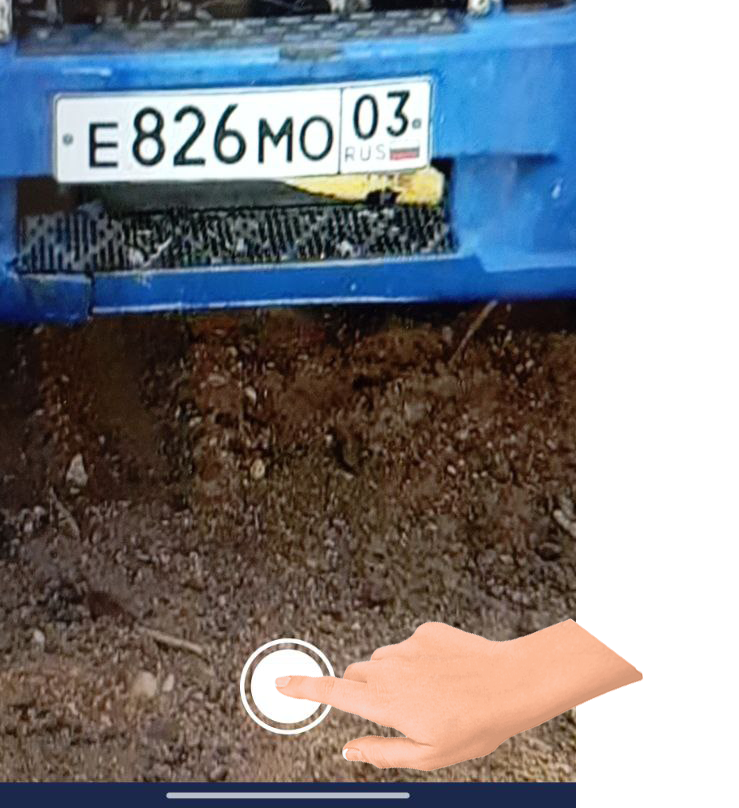
- Your phone’s camera will open. Take a photo of the license plate.
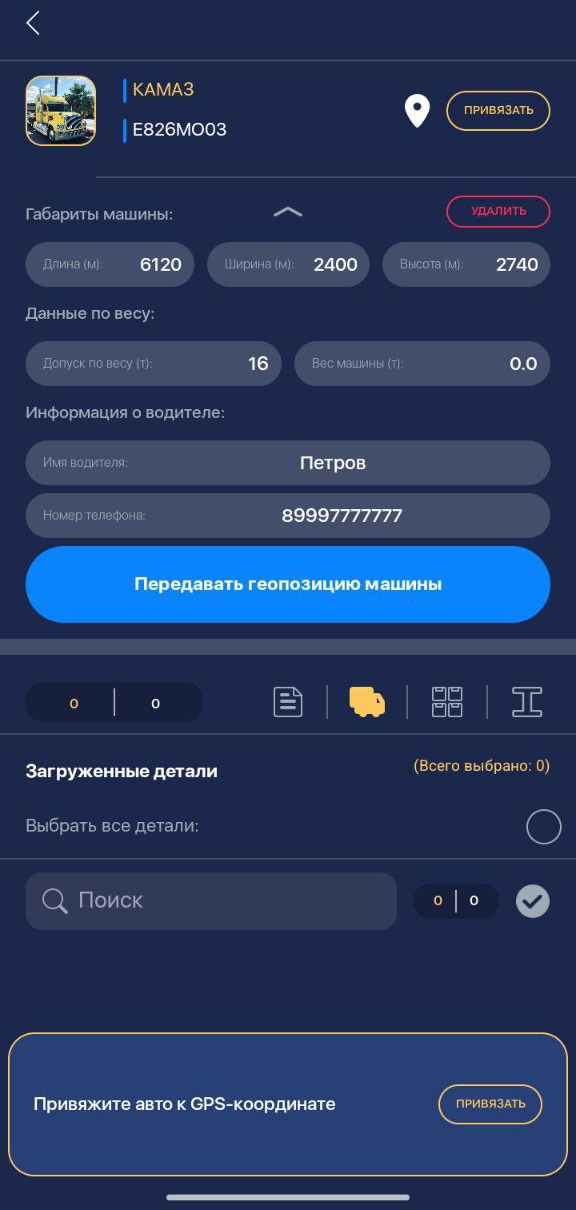
- Add the vehicle brand and dimensions.
-
Tap “Bind” twice. The vehicle number will be added to the system and the GPS coordinates of your phone will be assigned.
-
By enabling “Share Vehicle Location,” the vehicle’s route will be shown on the map (if the driver’s phone number is entered).
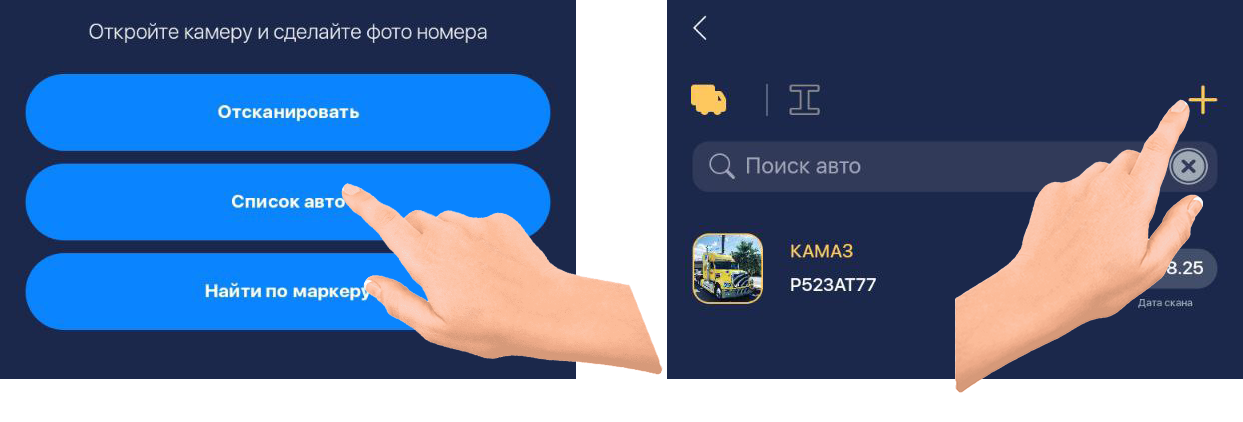
Add Manually via Vehicle List
The manual process is similar to scanning the license plate.
Instead of “Scan”, tap “Vehicle List” and then click
 .
.
How to remove vehicle
HOW TO REMOVE A VEHICLE
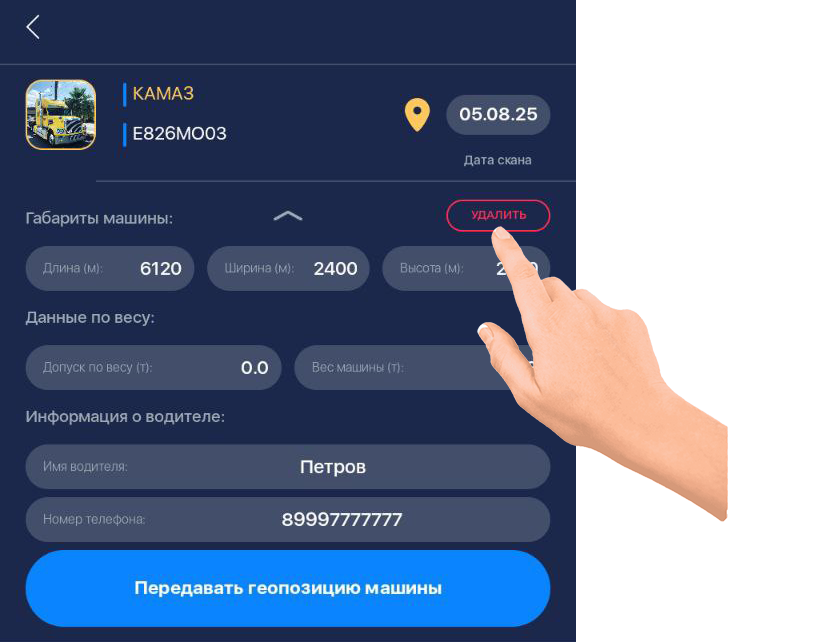
To remove an existing vehicle:
- Open the vehicle menu.
- Tap “Delete.”
Loading Items into a Vehicle
LOADING ITEMS INTO A VEHICLE
❗️IMPORTANT❗️:
Before loading, you must share the vehicle’s location. Tap “Bind”.
When opening a vehicle card, the vehicle contents section opens automatically
 .
.
To load items, go to the warehouse section
 , select the source location/status of the items,
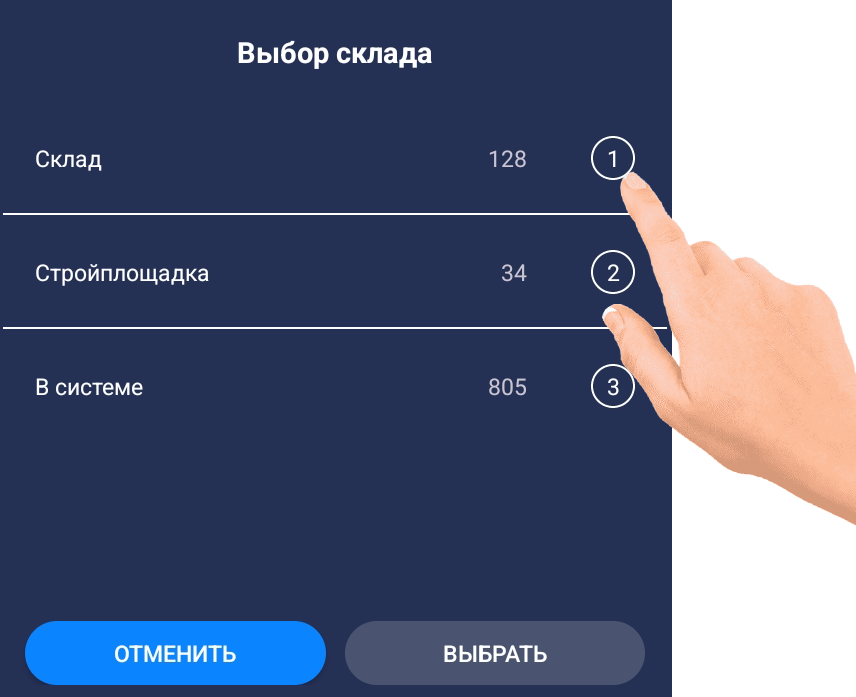
search for the required items/bundles, select them with checkmarks, and tap “LOAD.”
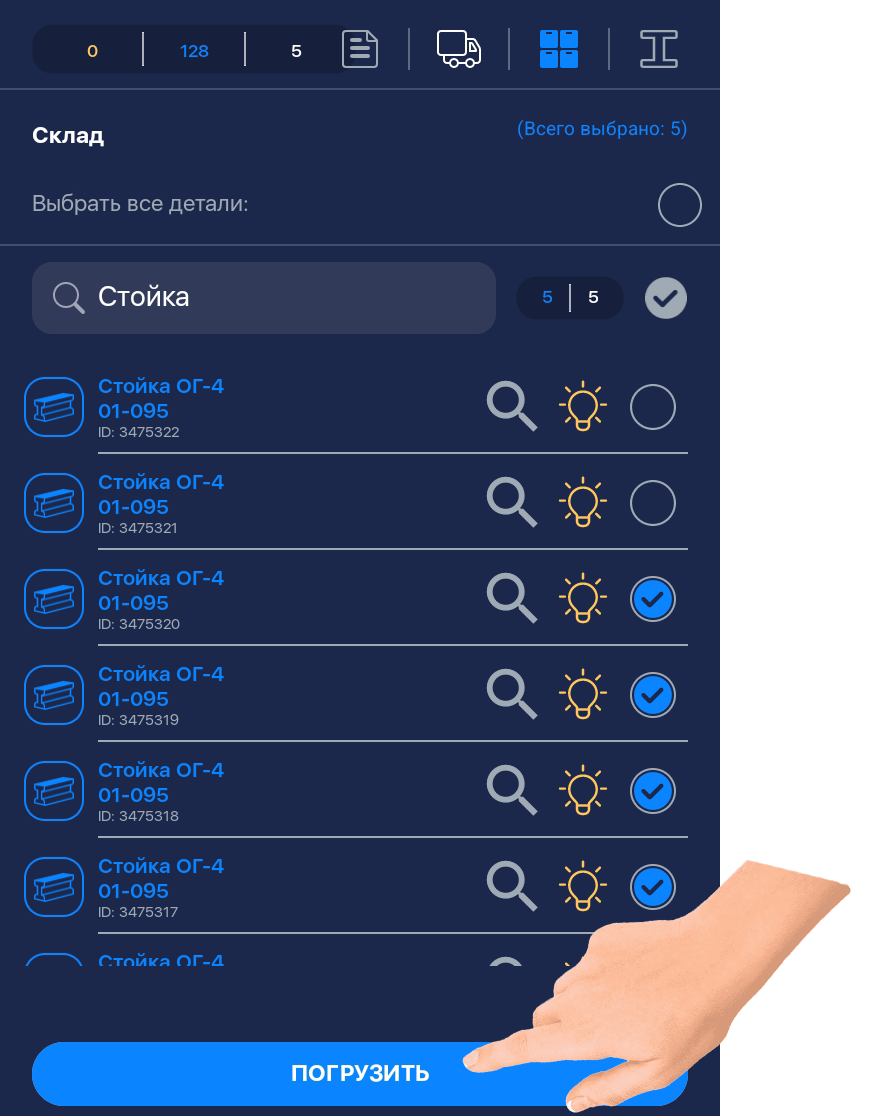
For large quantities of STANDARD items (like in a bundle), you can enter the quantity next to the search bar and check the box to select that exact amount.
Check the counter on the left:

- Yellow — items in the vehicle.
- Blue — items in the warehouse available for transport.
- White — selected items.
To select all items at once, tap
 .
.

After selection, tap “LOAD.”
The items will appear in the vehicle (truck tab).
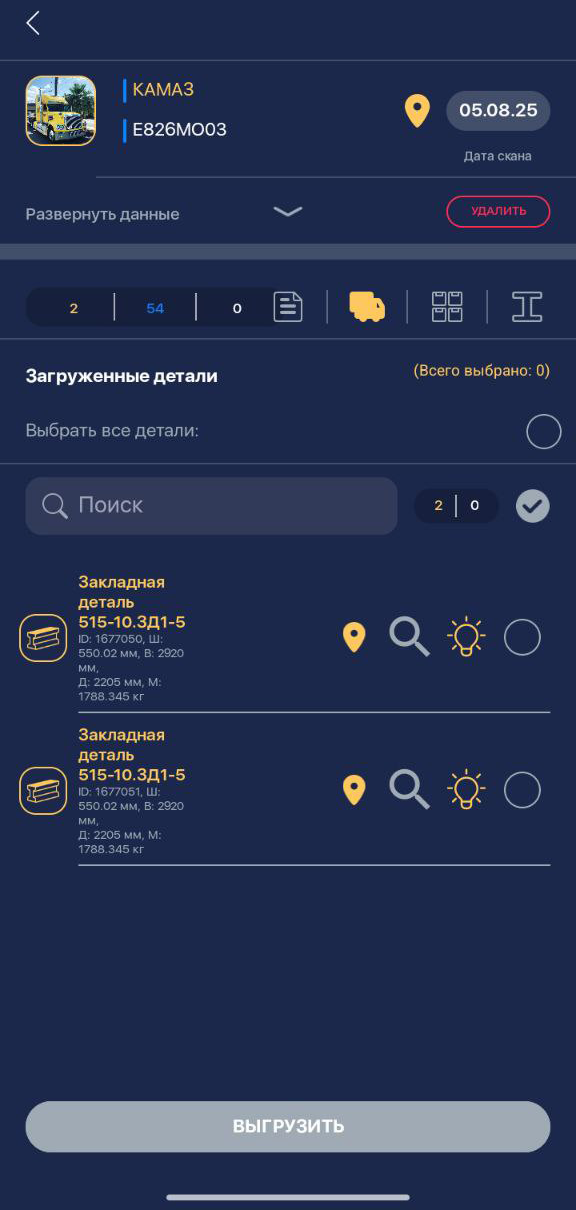
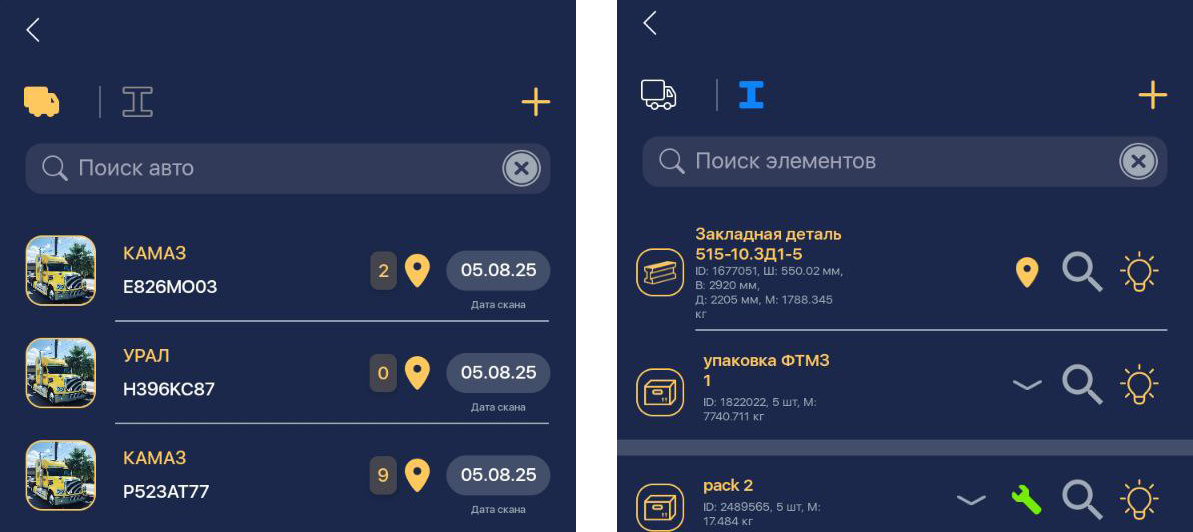
You can view vehicles with loaded items in the transport list

or see all items in transport by tapping

in the upper-left corner.
❗️IMPORTANT❗️:
Be careful with bulk selection of similarly named items. For example, searching Beam B-1 may also include Beam B-10.
Entered quantities will apply to all selected items.
❗️IMPORTANT❗️:
Moving a bundle into a vehicle changes the status of the bundle and all its contents.
Items can also be loaded via marker scanning by tapping
 .
.
Unloading Items from a Vehicle
UNLOADING ITEMS FROM A VEHICLE
Items can be unloaded in several ways:
-
By scanning markers of bundles/items in a module where unloading on scan is enabled (e.g., CONSTRUCTION SITE).
(This function is enabled via support during project setup.) -
Manually from the item list.
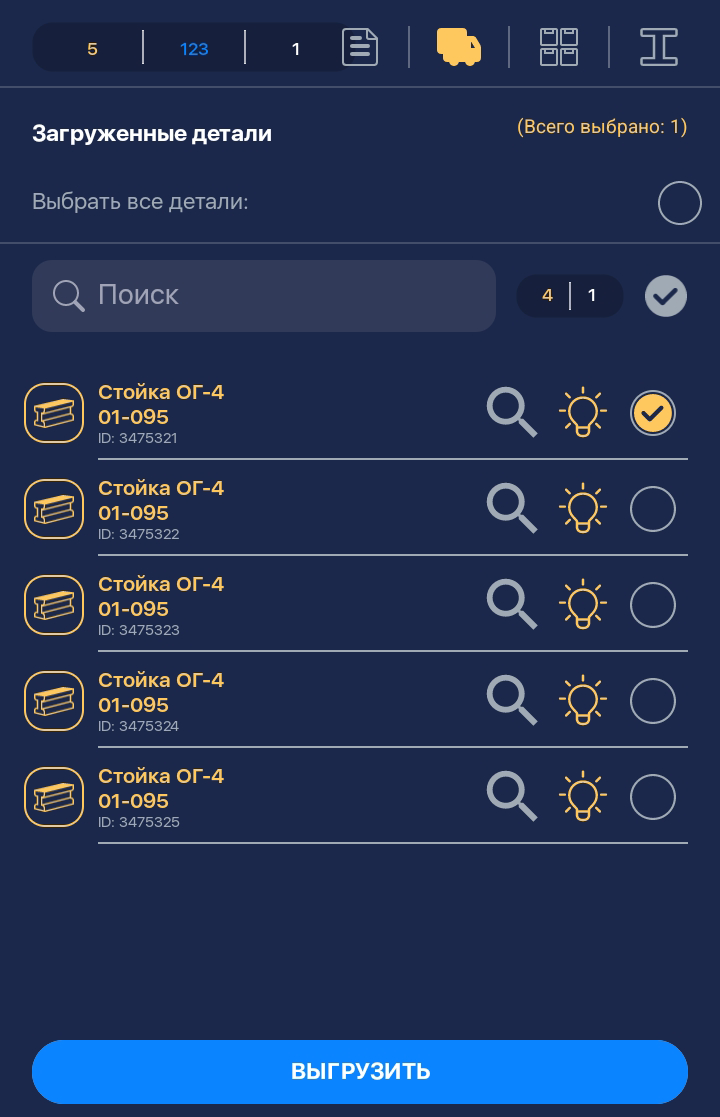
Also select the location to unload the items/bundles.