Lamp
In BimAR, you can highlight specific items to draw attention to them. This is done using the lamp icon
 .
.
You can highlight any item or bundle with this icon.
HOW TO HIGHLIGHT AN ITEM WITH THE LAMP?
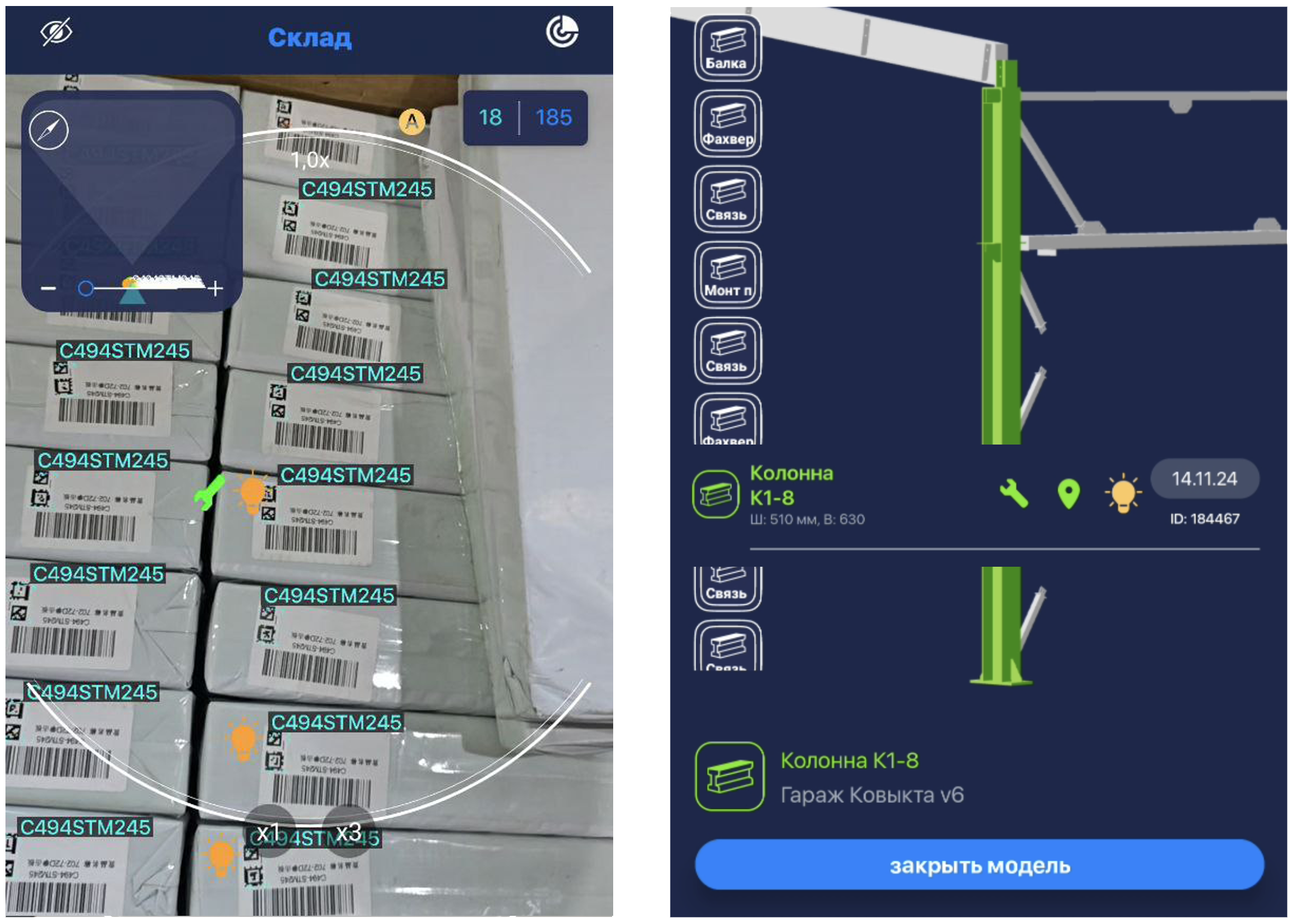
To turn on the lamp, tap it on any screen: the main page, item page, or scanner panel.
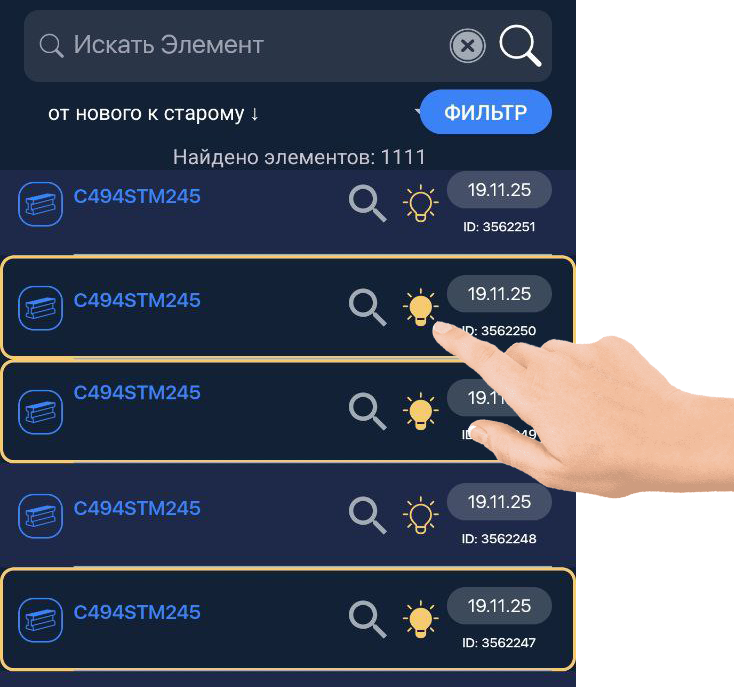
After that, a glowing lamp will appear next to the item throughout the system.
To display highlighted items at the top of the list, enable the sorting option “Show Highlighted Items First.”
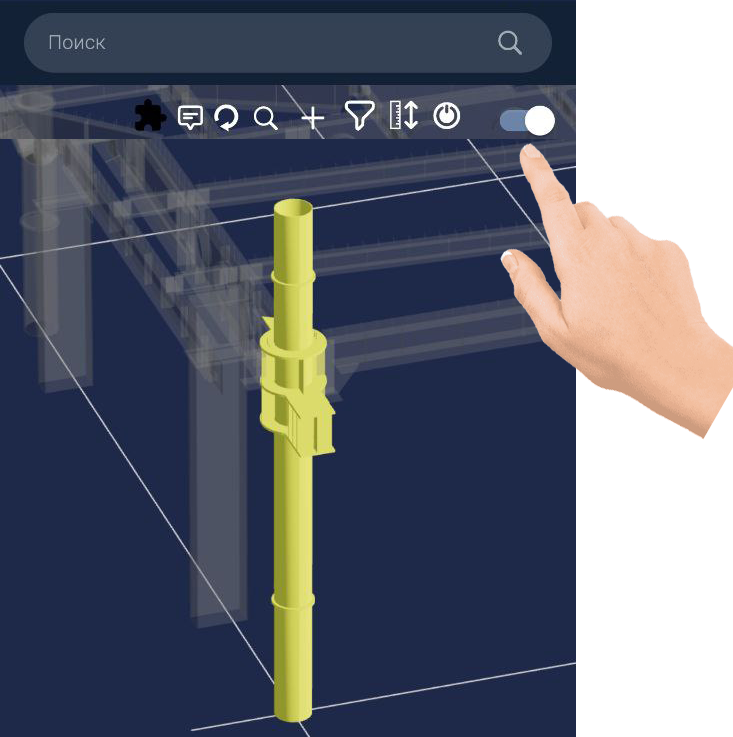
To show highlighted items in the 3D model, enable “Show Selected Items” in the top-right corner of the 3D model control panel.
❕TIP❕:
If too many lamps are turned on in the project and they get in the way, you can turn all lamps off at once by tapping
in the top-right corner of the project main page.