Elements
PROJECT ELEMENT LIST
This is the main workspace within the project. Here you’ll find all project elements, their current color-coded statuses, and essential information about each one.
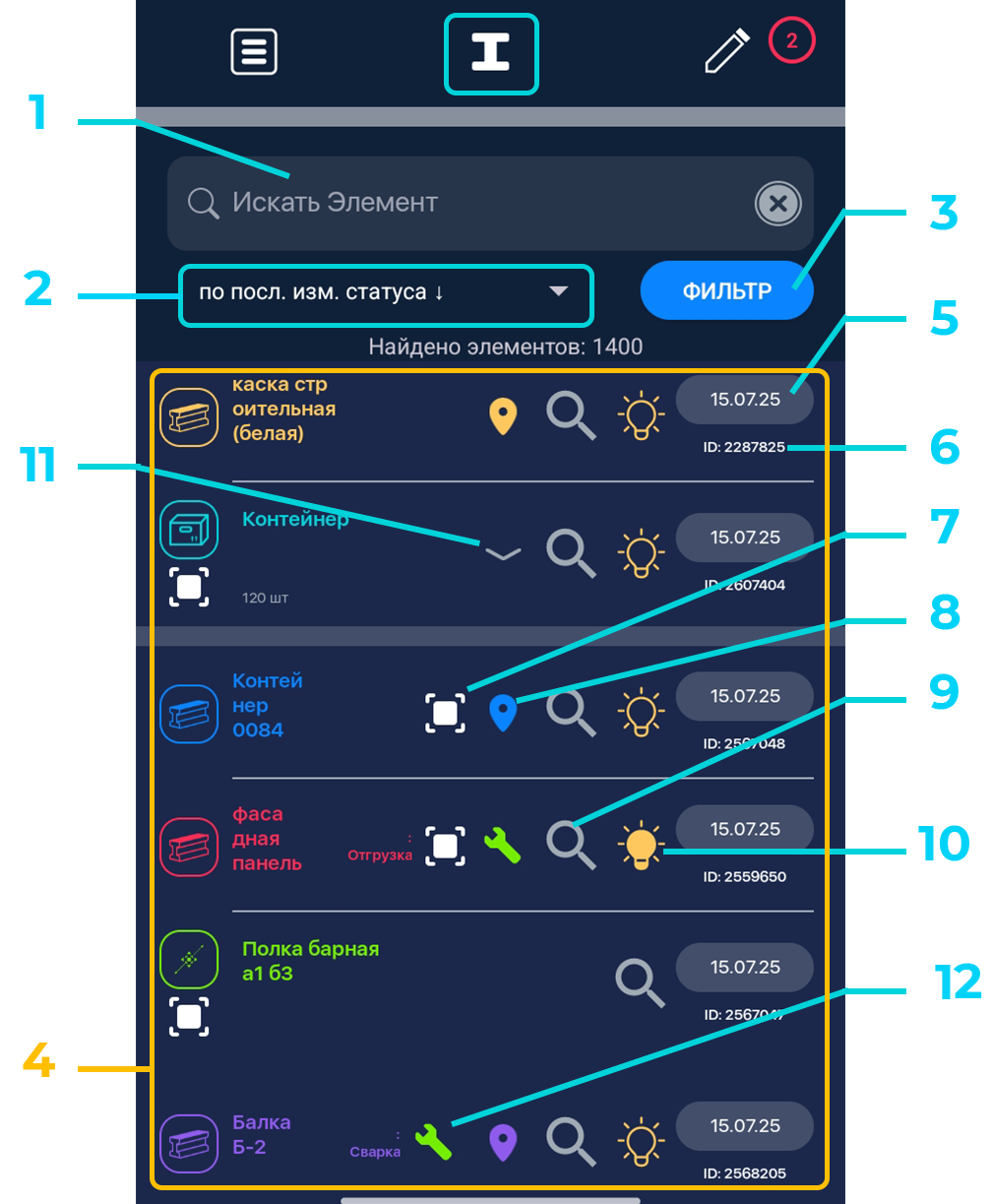
- Search for an element by name/attributes
- Sorting order of the list
- Element filters
- List of elements
- Date when the element’s status was changed
- Unique element ID
- Indicator showing whether a marker is linked to the element
- Indicator of element geolocation binding
- Toggle to search for a favorite element
- Toggle to highlight an element for easier locating
- Expand the contents of a bundle/cell
- Indicator that the element has an assigned task
Types of Elements
TYPES OF ELEMENTS
The system supports several element types, each serving a specific purpose:
Element — a universal accounting unit (e.g., equipment, materials, construction parts, etc.).
Bundle — an element capable of containing other elements (e.g., a box, pallet, crate, container, storage zone, etc.).
Cell — a bundle with defined geometric parameters used for scanning items into it.
Weight Gauge — an element with editable weight characteristics.
Fluid Element — an element measured in liters.
Piece Gauge — an element with a measurable quantity inside.
Element Search
ELEMENT SEARCH
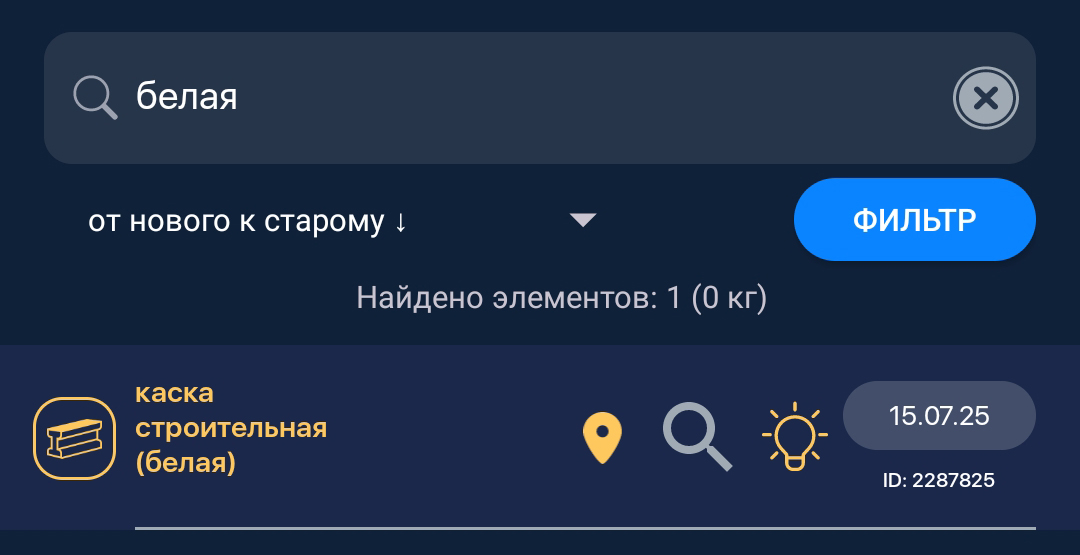
You can search for an element by entering its name, mark, or unique ID (for specific items) into the search field. The matching element will appear in the list below the search bar.
By enabling status-based filtering, you can limit search results to the required status.
See Element List Filter.
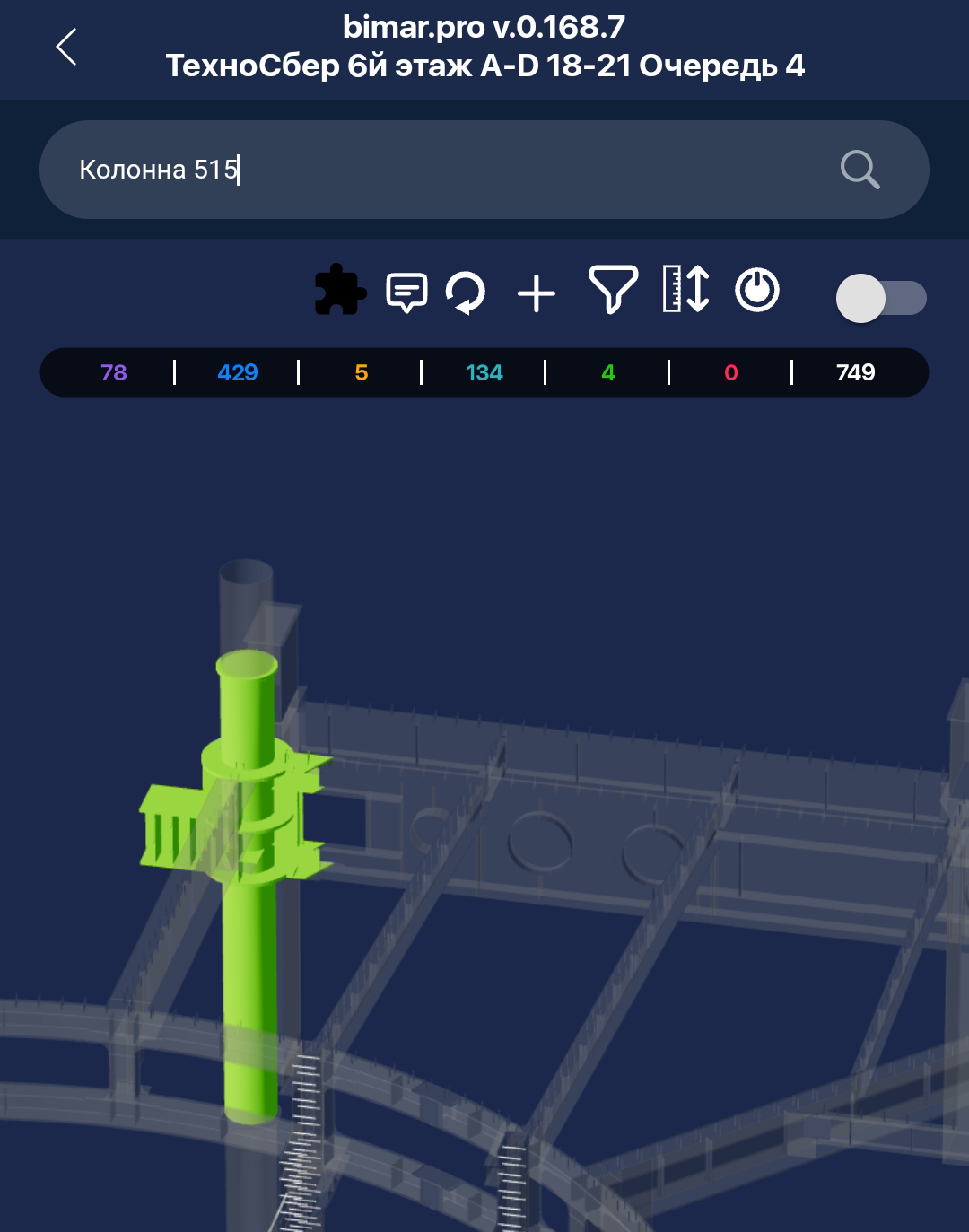
You can also search for a specific element directly through the 3D model.
See 3D Model.
Element List Filter
ELEMENT LIST FILTER
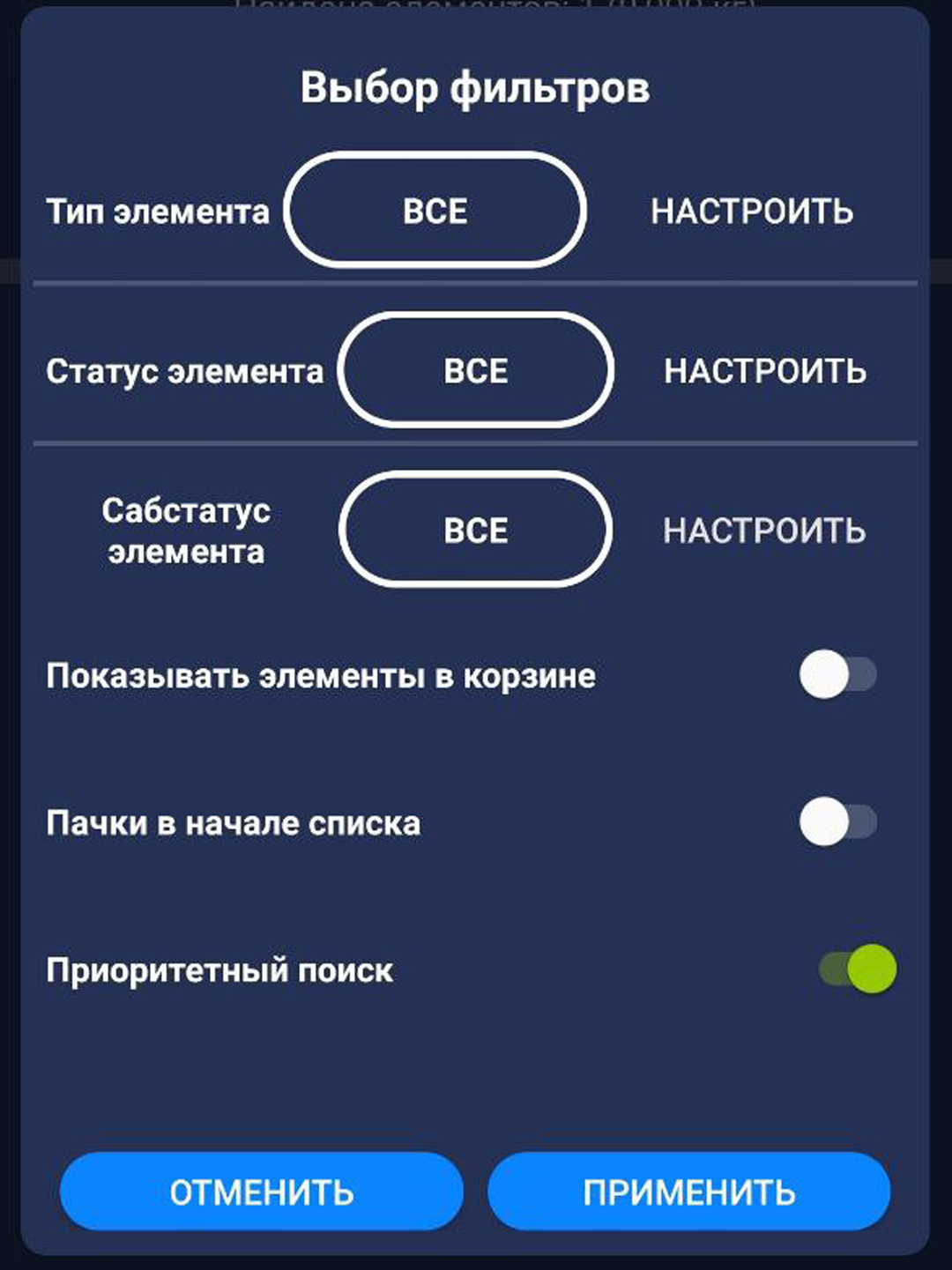
The Element List Filter allows you to search elements by types, statuses, and substatuses (2nd level).
To apply a filter, tap the “FILTER” button next to the search bar.
In the filter selection window, you will see “ALL” and “CUSTOMIZE” buttons for each filter category.
❗️IMPORTANT❗️
By default, the filter includes all element types, statuses, and substatuses.
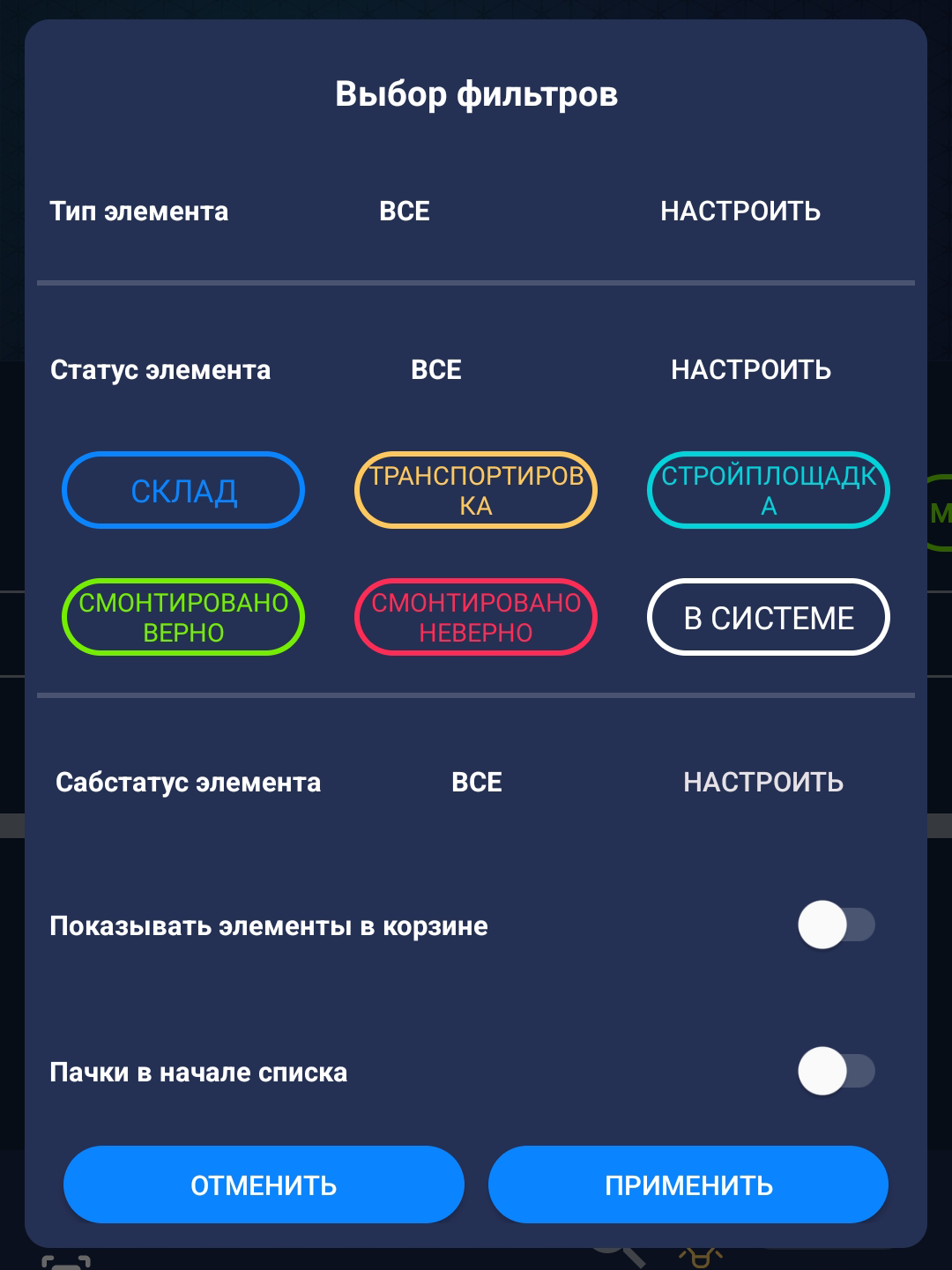
The filter works in reverse. When selecting “CUSTOMIZE”, choosing statuses or types will exclude them from the filter.
❗️IMPORTANT❗️
To enable filtering by a single status or element type, press and hold the desired filter for 2 seconds.
All other filters will be disabled automatically.
If you want to add more filters afterward, simply tap them.
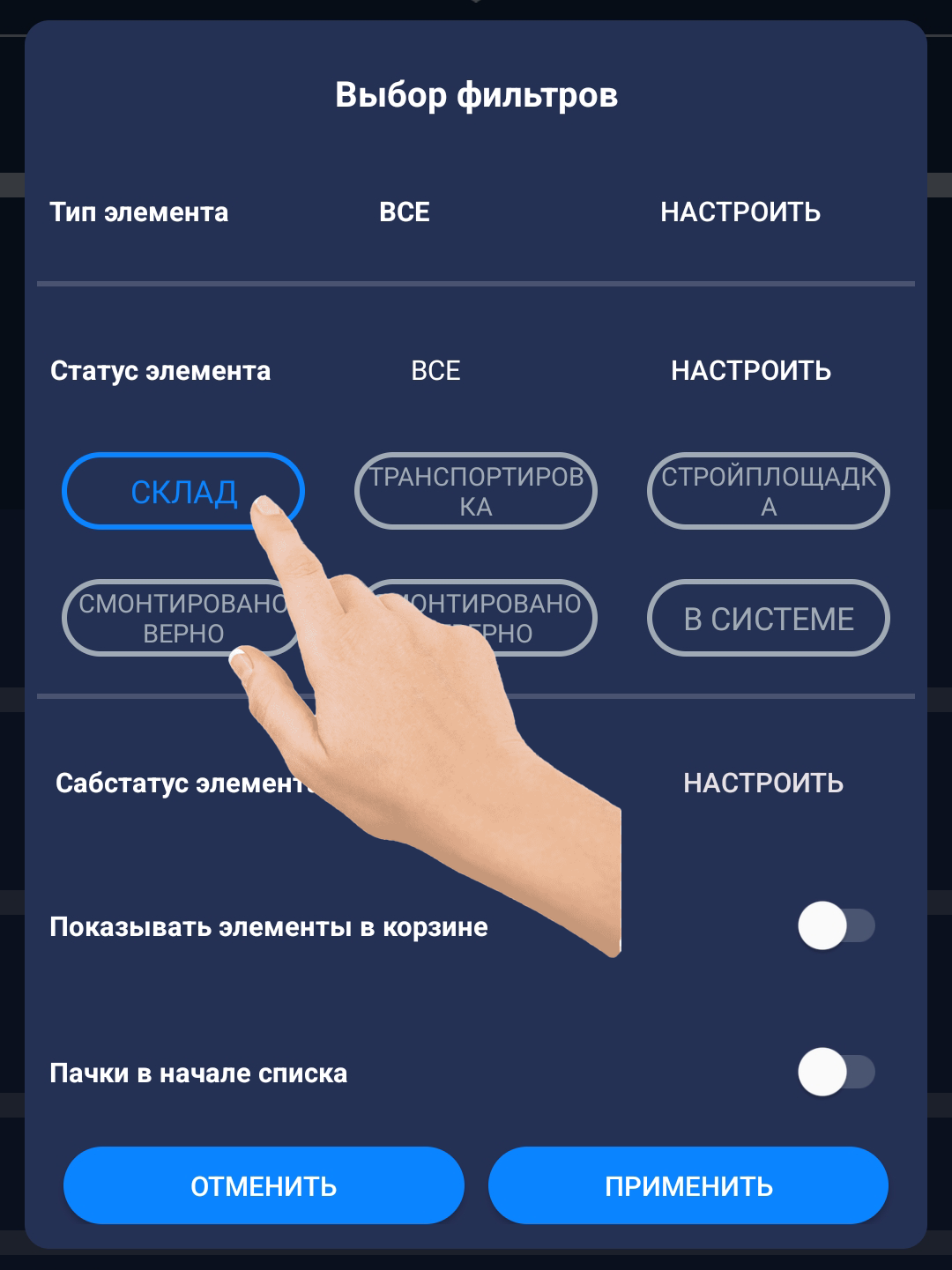
To reset the filter, tap the “ALL” button.
Below the filters, you will find toggles for enabling/disabling the display of deleted elements and enabling/disabling the display of bundles at the top of the list.
When finished adjusting the filter, tap “APPLY” or “CANCEL.”