Projects
How to Find a Project
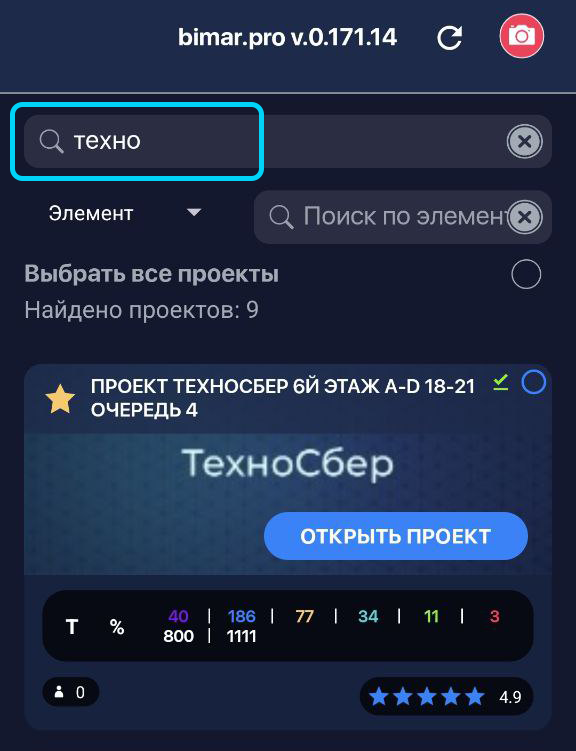
To find a project, enter its name in the search field and tap the “OPEN PROJECT” button.
Caching Projects
When you load a project for the first time, it is saved to your phone’s internal memory. This may take some time. This process is especially useful when working in areas with an unstable internet connection.
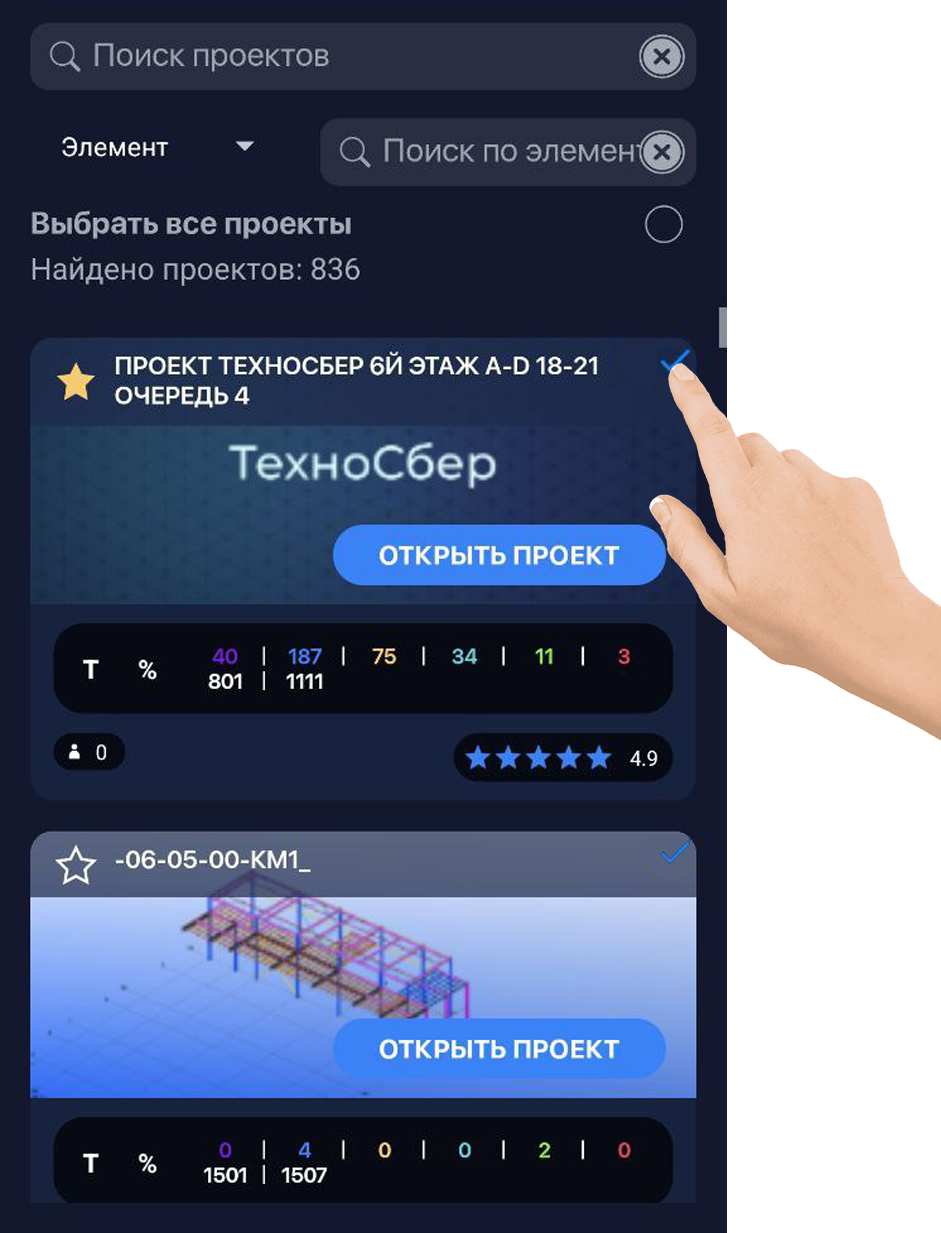
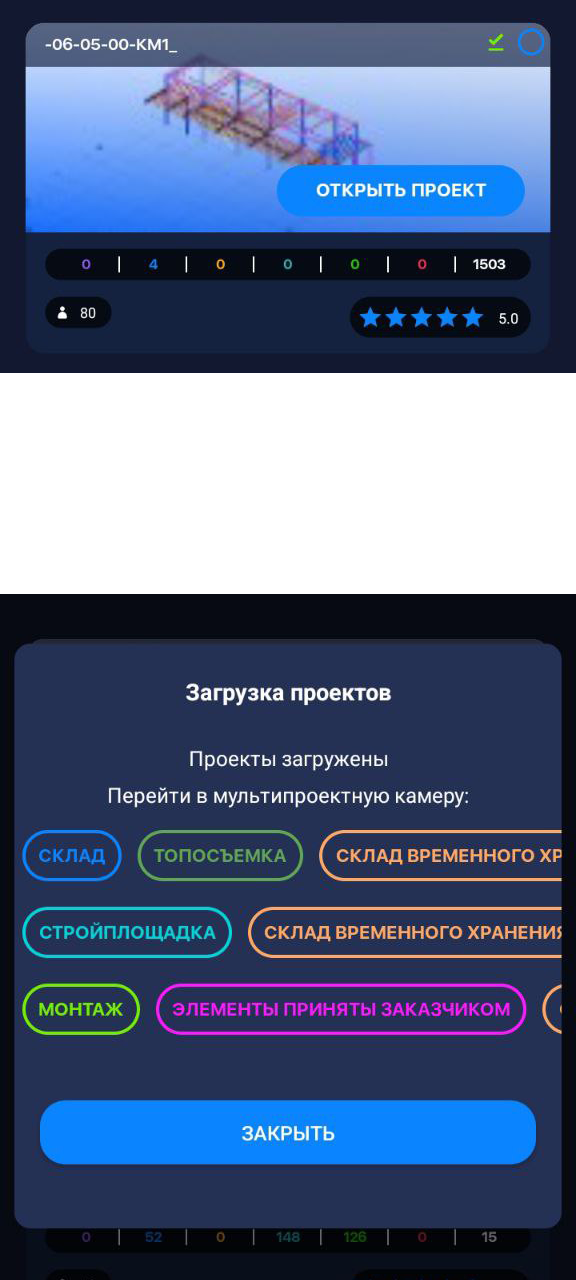
If you need to load multiple projects at once, you can select them by tapping the project selection area and then tapping “Download Projects.”
After a successful download, each project will display a green checkmark  and the multiproject camera window will open so you can scan elements in the required mode.
Project Window
PROJECT MAIN SCREEN
When you open the project, you land on its main page:
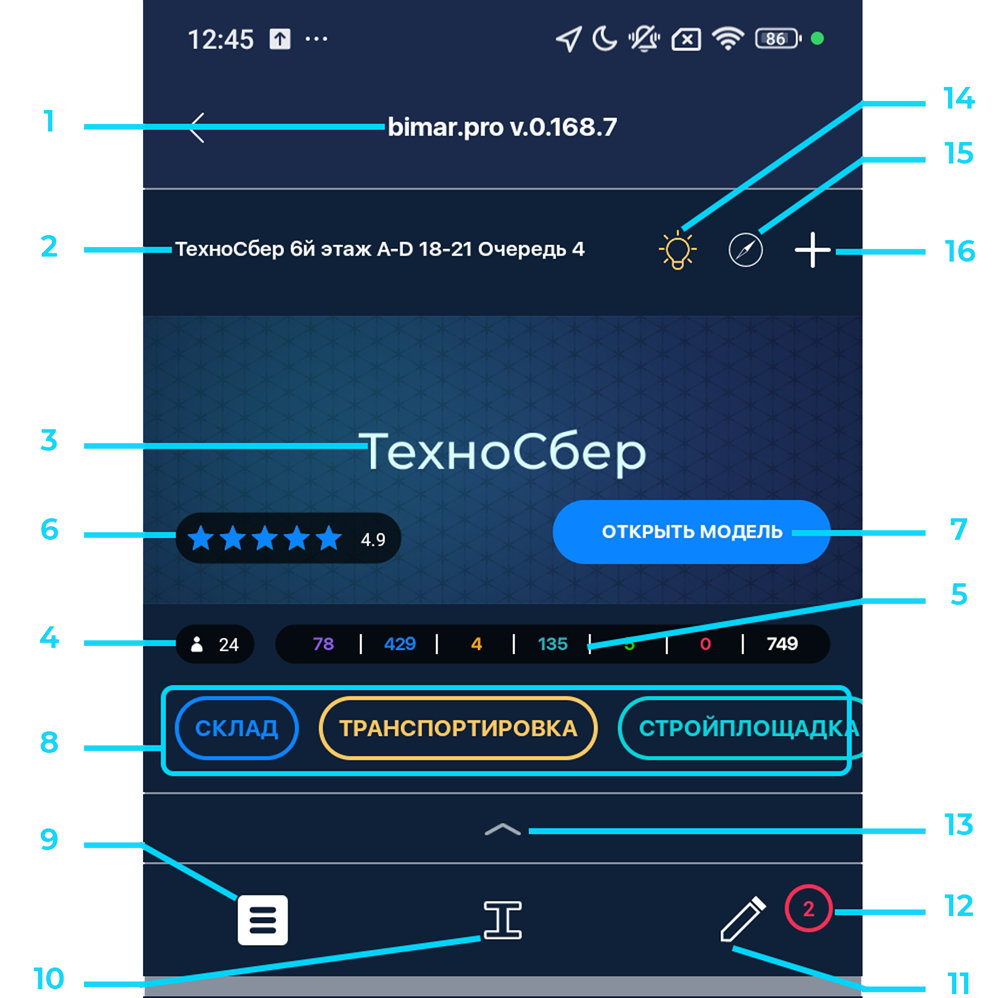
- Installed app version
- Name of the opened project
- Project icon
- Number of project participants
- Counter (Number of elements and their current statuses — depends on settings):
Production
Warehouse
Transportation
Construction Site
Installed Correctly
Installed Incorrectly
Element in the system
❗️IMPORTANT❗️
The statuses shown in the counter depend on user settings.
- Button to open the project’s 3D model
- Modules (Scanning modes)
- General project information
- Elements list
- Tasks section
- New task notifications
- Expansion of the lower half of the screen
- Turning off all indicators
- Map
- Add element
GENERAL PROJECT INFORMATION
This section displays the project’s general information, including participant roles and uploaded documentation.
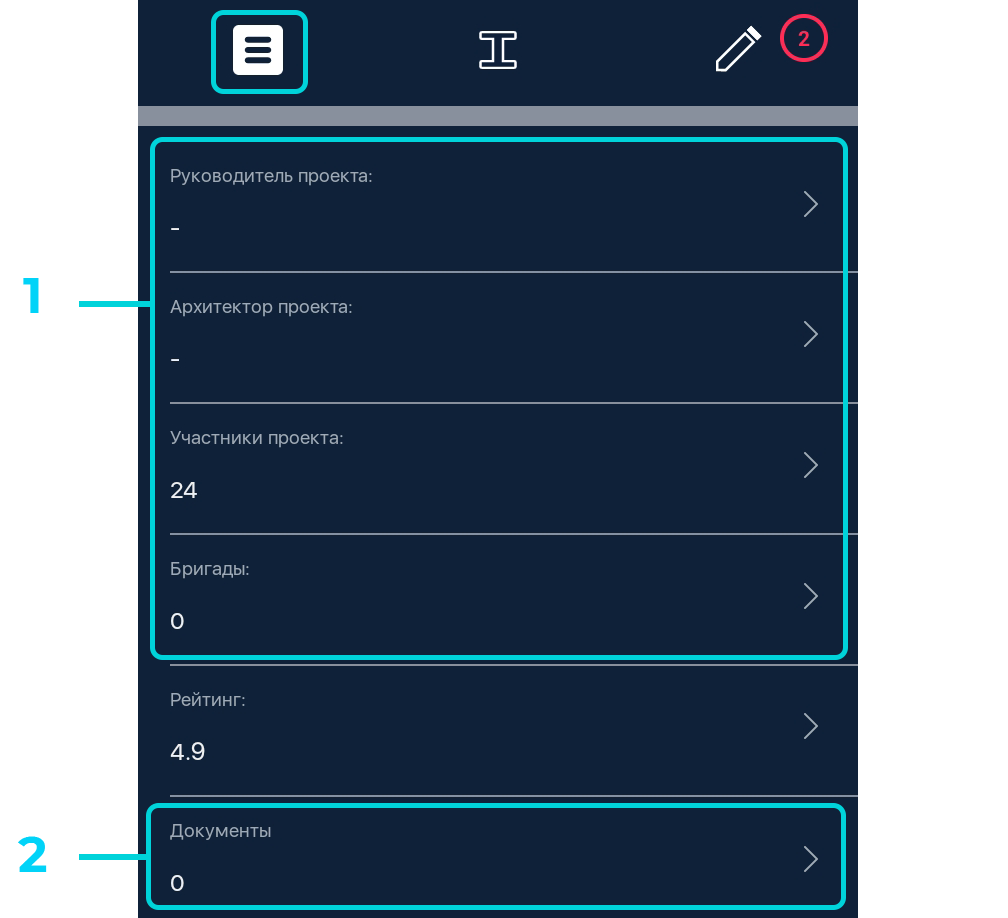
- Project participants by role
- Documentation and uploaded files related to the project