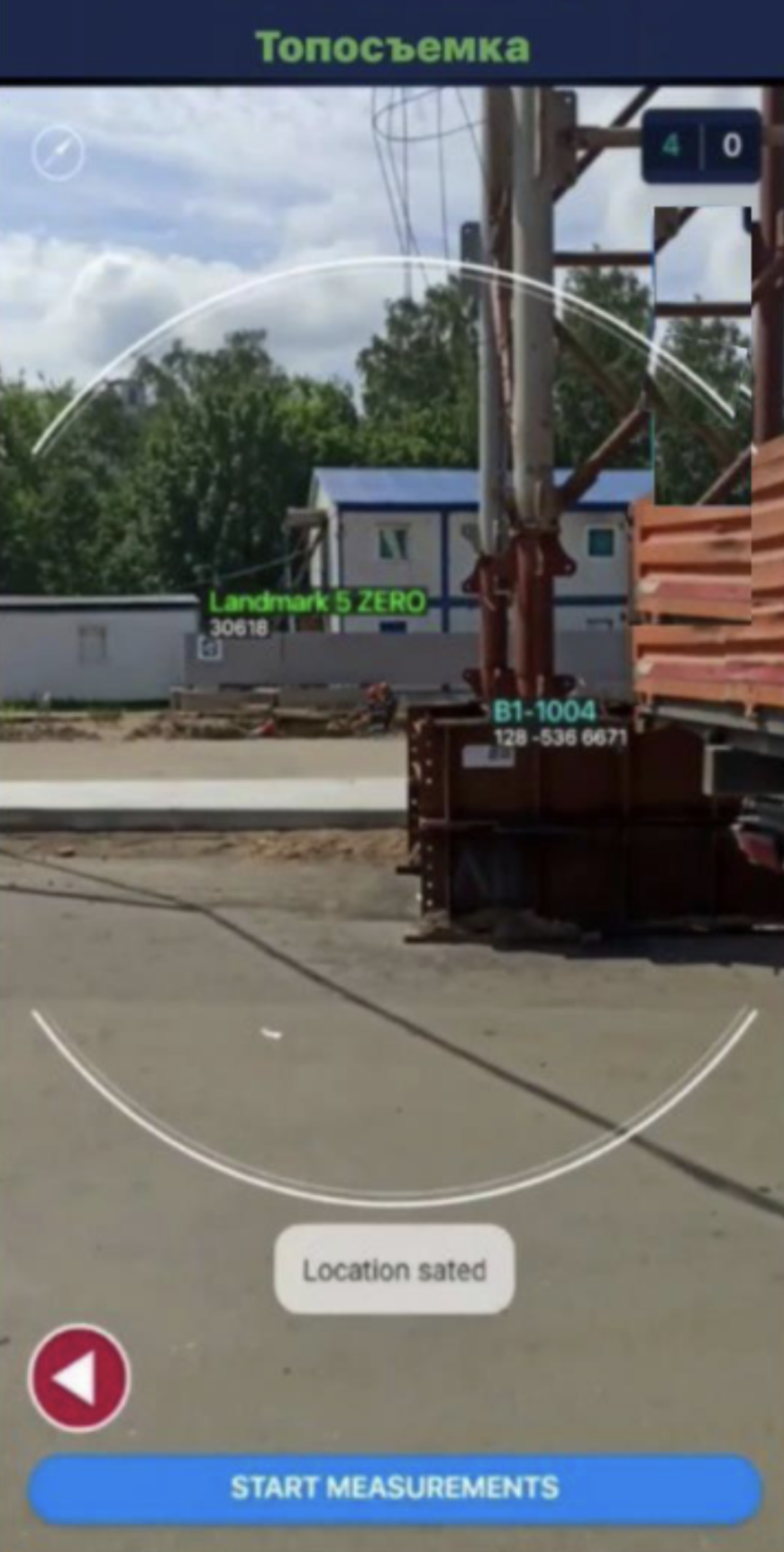
Topography
In this mode, you work with landmarks. Scanning a landmark is similar to scanning in the Warehouse or Construction Site modes: aim the camera at the marker attached to the landmark.
To accurately position elements on site, the system allows mapping their locations.
Steps:
- Enable any mode (except Topography)
- Fix the exact coordinates by tapping the compass icon and selecting the point on the map.
Next, scan the markers of other elements so that the landmark is also visible in the camera frame.
After that:
- Go to the project page and open Create Element by tapping


- Enter the landmark coordinates on the creation page
- Tap Create One Element
❗️IMPORTANT❗️:
When separating coordinates into Degrees, Minutes, and Seconds, use a dot or comma.
Exact geographic coordinates must be known in advance. Use external services to determine them, such as Yandex Maps or Alpine Quest (Android) for more precise positioning.
- In scanning mode, aim the camera at the marker and tap Create Elements
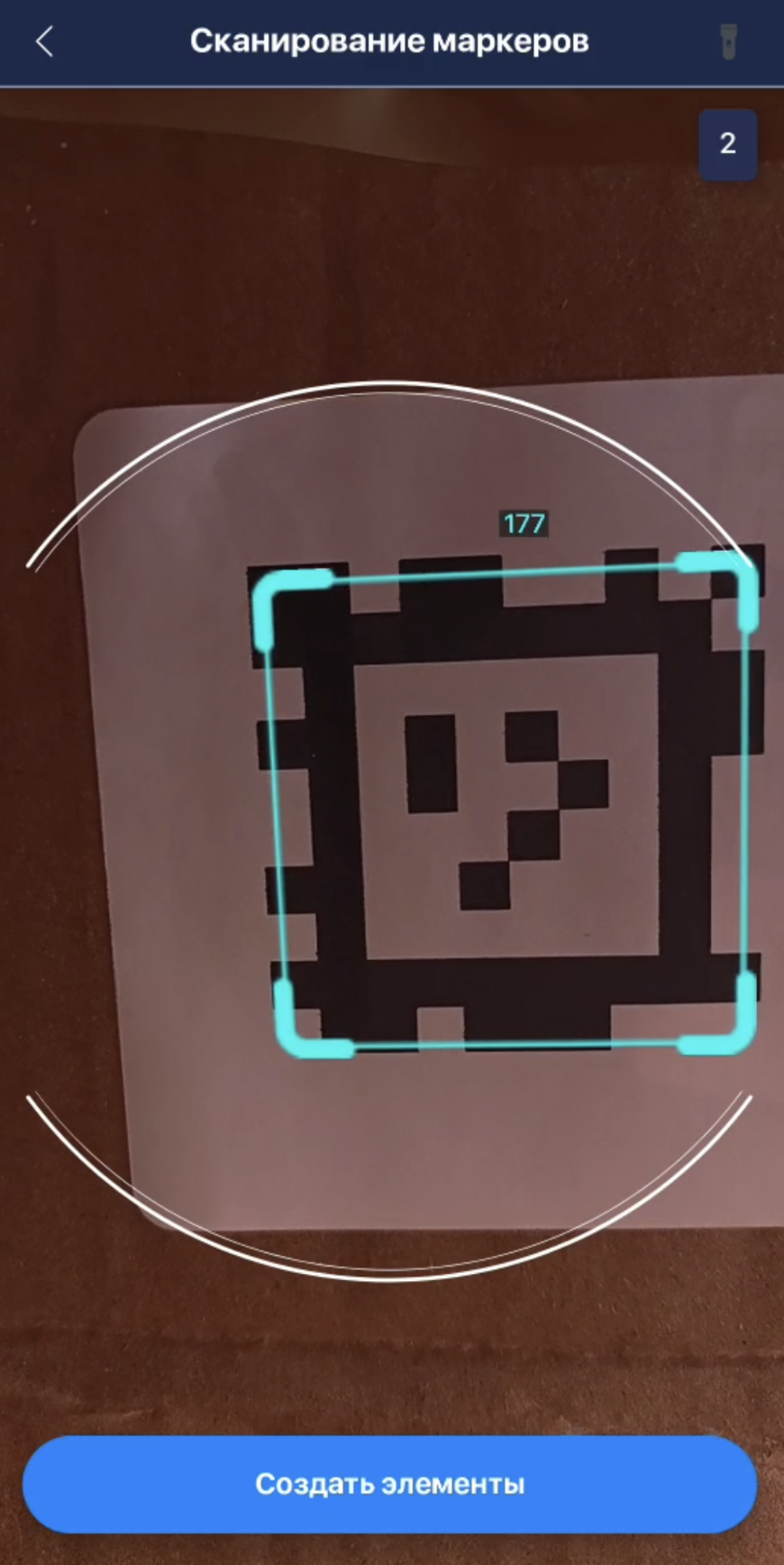
- Go back to element search, find the landmark, and tap it
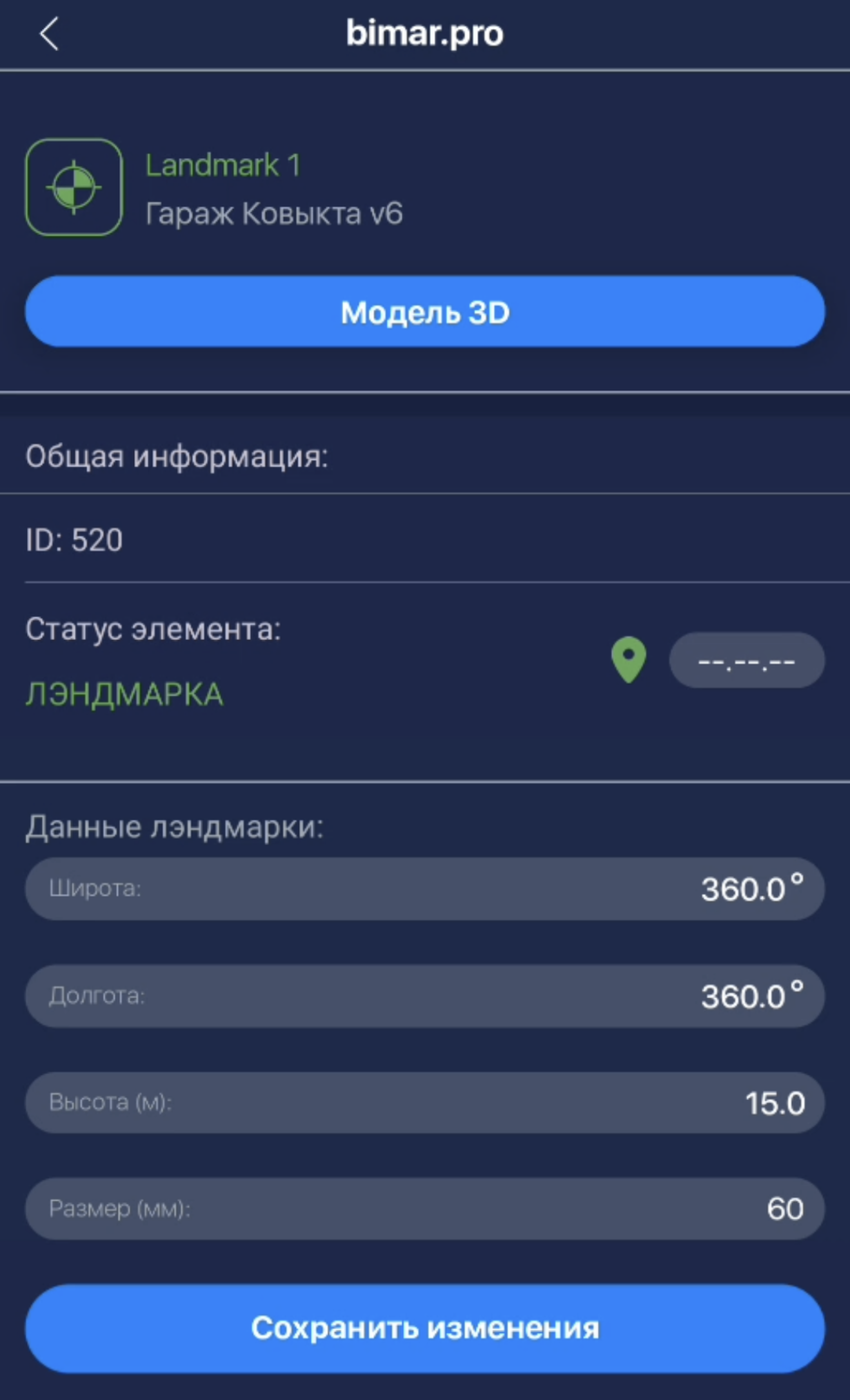
- If needed, rename the landmark by clicking its name and tap Save Changes
After creating the landmark, if an element marker is captured in the scanner frame together with the landmark, the element will be linked to the landmark’s coordinates and displayed on the map.