Introduction
Authorization
“You need to sign in when you first start the application. To do this, click ‘Sign In’ and enter your Username and Password.”
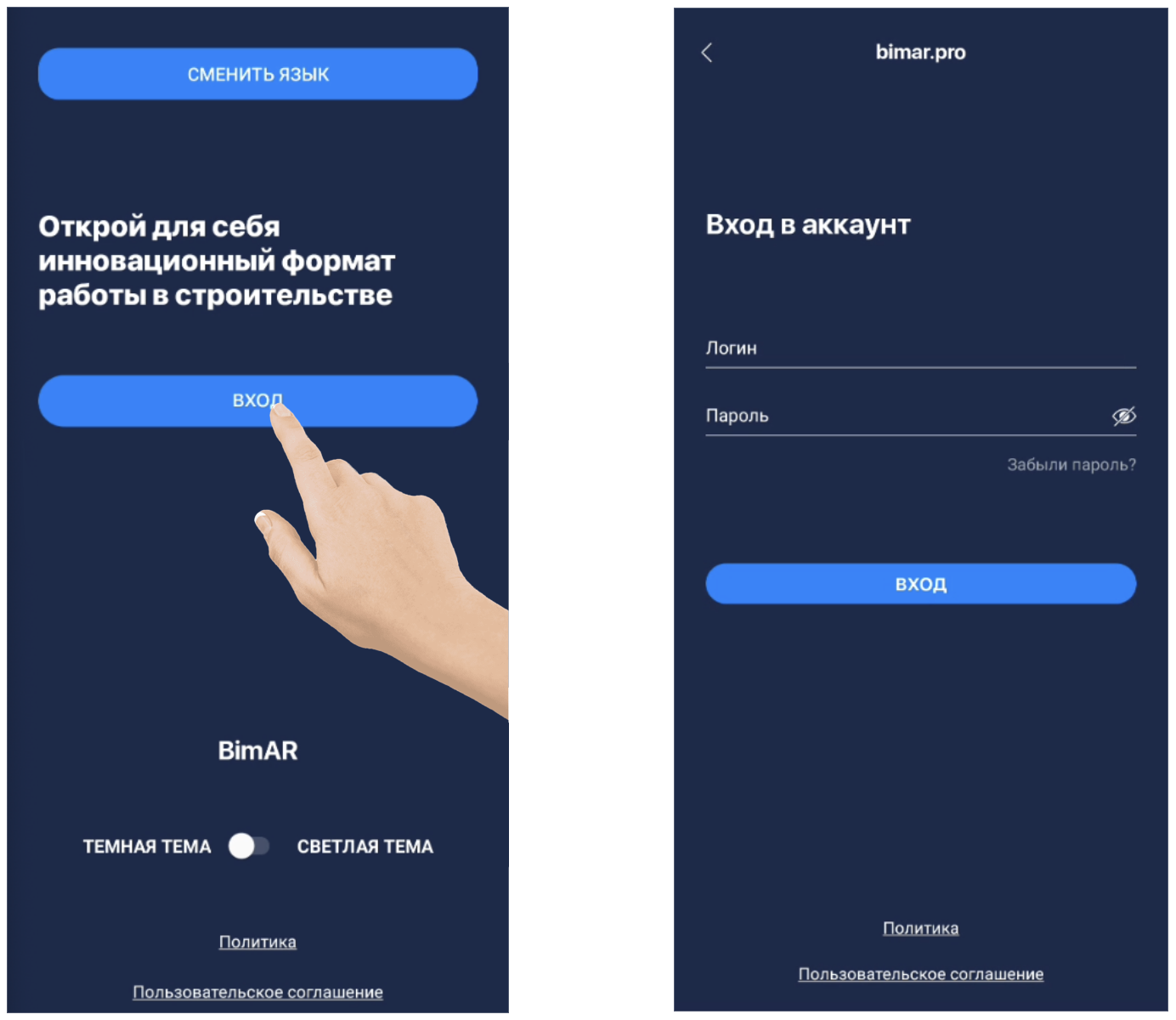
❗️IMPORTANT❗️:
During the initial authorization in the system, your account is linked to the mobile device’s IMEI. Authorization on other mobile devices will not be possible.
(To remove the device restriction, please contact technical support)
Language
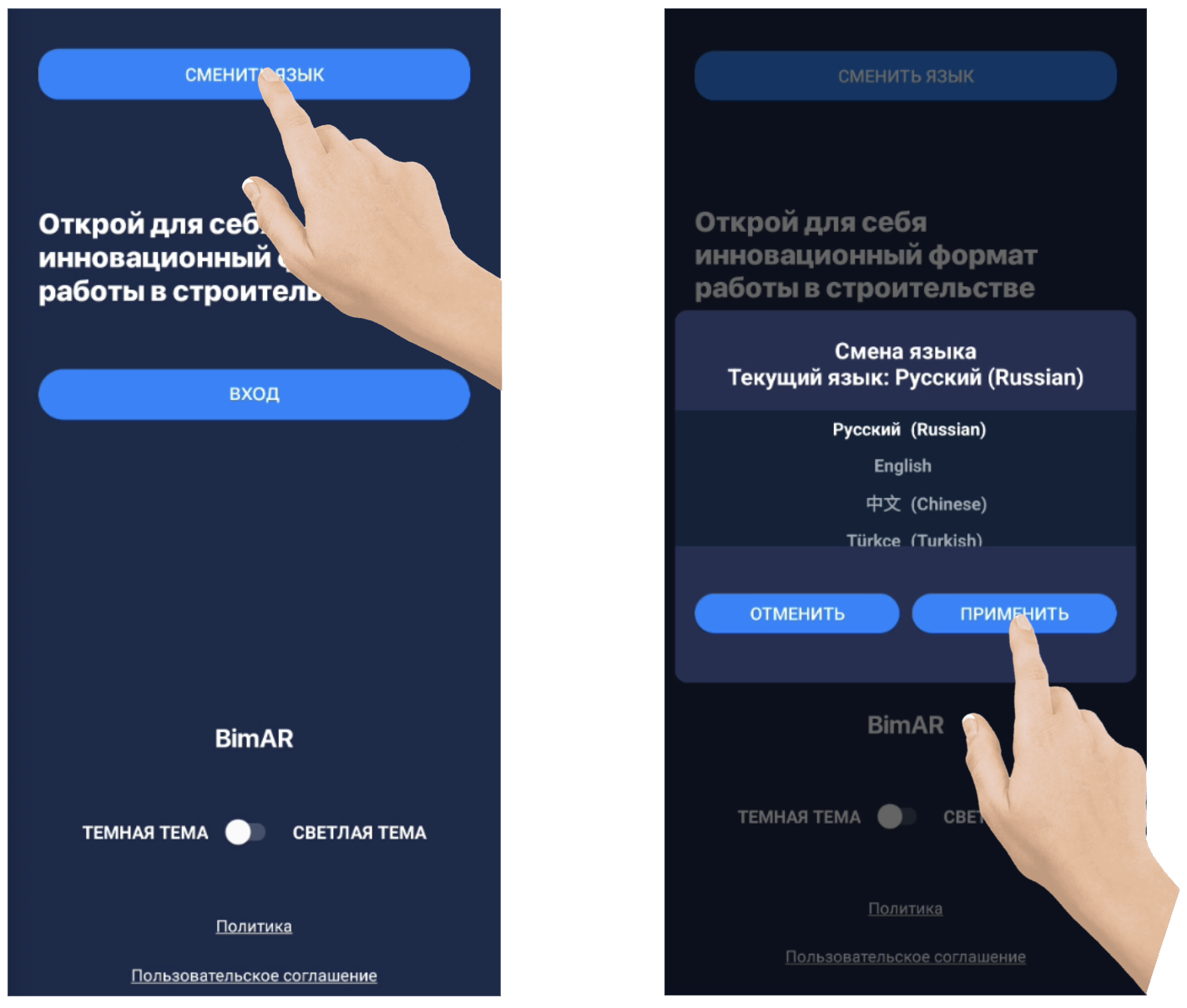
You can change the interface language on the login screen using the ‘Change Language’ button.
We support Russian, English, Mandarin Chinese, and Turkish. Once you select your preferred language from the list, please click ‘Apply’."
❗️IMPORTANT❗️:
The language setting only changes the UI (user interface). Project titles and content will remain in the original input language.
Interface
SECTIONS
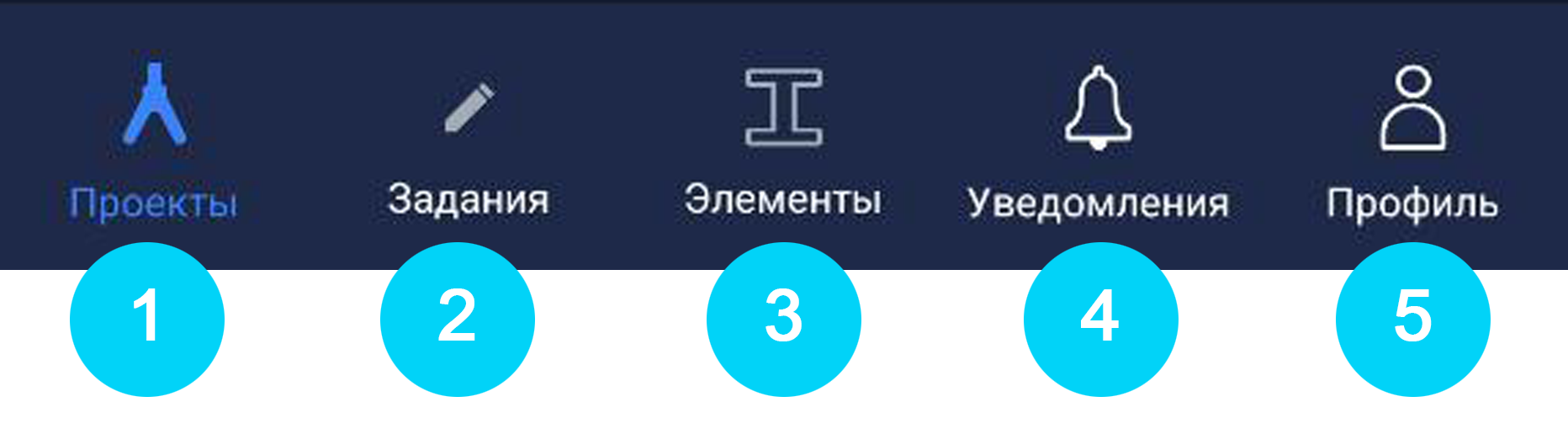
In the application, you will see the following sections:
-
Projects — A list of available projects. Here you can: load and unload elements from the warehouse, create and delete batches of elements, and open the 3D model of your project. When a project is loaded, it is cached in the device’s internal memory.
-
Warehouse — Elements located in the warehouse/storage.
-
On Site — Elements currently located at the construction site.
-
In Transit — Elements loaded onto transport/vehicles.
-
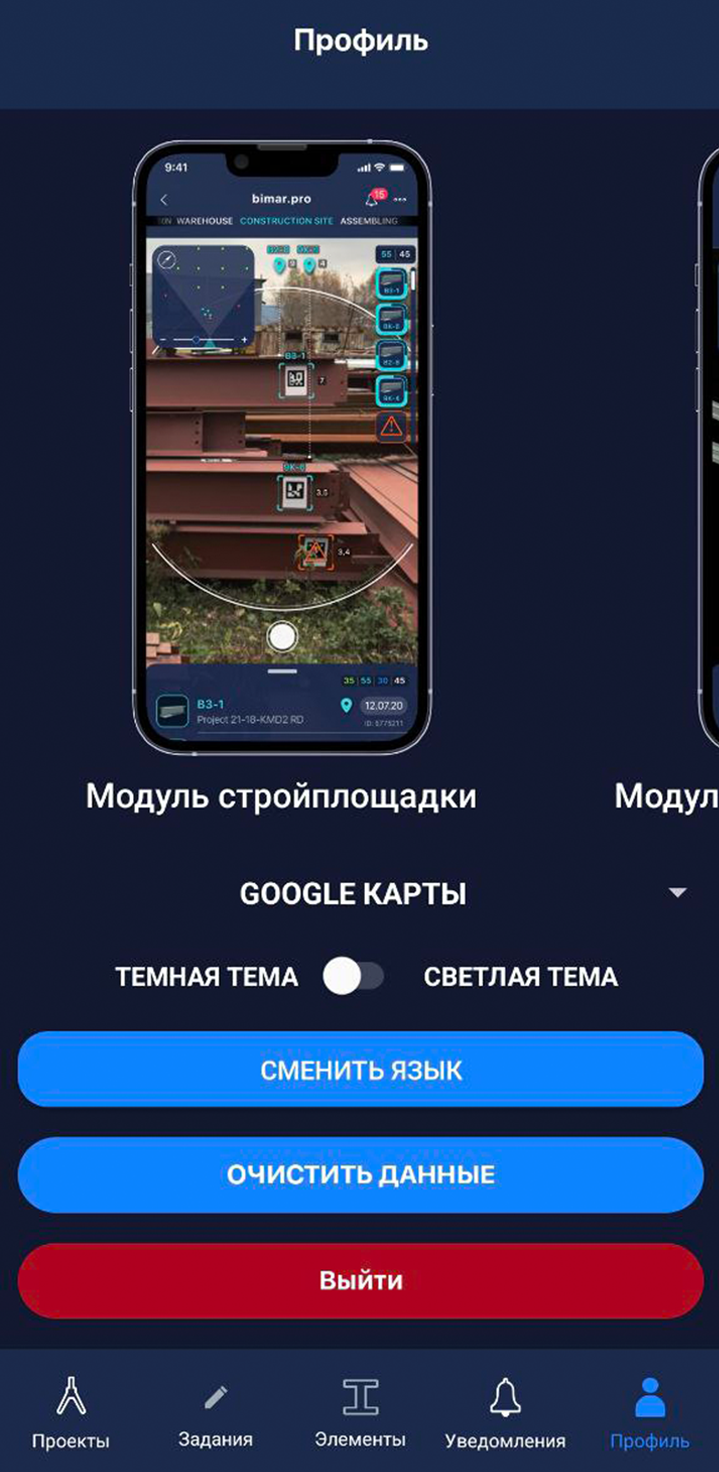
Profile — This section contains: satellite map selection, switching between dark and light themes, showing elements on camera view, changing the language, enabling transition to the element card when tapping it in scan mode, clearing the cache, and logging out of the account.
-
Notifications — This displays notifications about status changes for elements the user is subscribed to, as well as notifications about assigned tasks.
❗️IMPORTANT❗️:
The “Warehouse,” “On Site,” and “In Transit” sections include all elements from all projects that are currently loaded into the cache. For example, if you have three projects cached, in the “Warehouse” section you will see a list of all details from all three projects.
PROJECT SELECTION SECTION
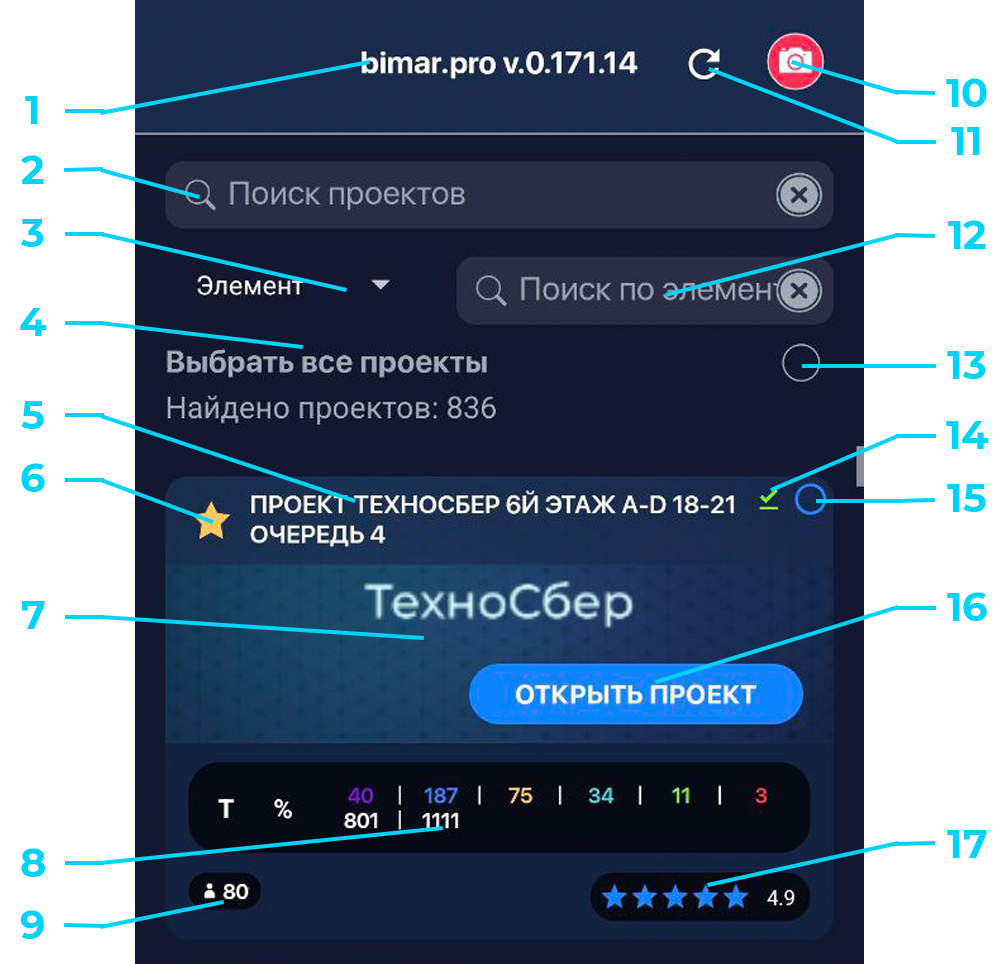
1.Installed application version;
2.Search for available project by name;
3.Select element/transport for search among projects;
4.Number of available projects;
5.Project name/code;
6.Add project to “Favorite projects” (Display at the top of the list);
7.Project avatar/icon;
8.Counter (Number of elements with their current statuses (depends on settings)).
Manufacture Warehouse Transit On site Mounted Correctly Mounted incorrectly Element in system
9.Number of participants in the project;
10.Search among projects by marker;
11.Refresh list / Update list;
12.Search bar for element/transport within projects;
13.Button to select all projects for download;
14.Project loading indicator (into cache memory);
15.Button for selecting projects individually;
16.Button to go to the project / Open project button;
17.Project completion rating / Project fill rating.