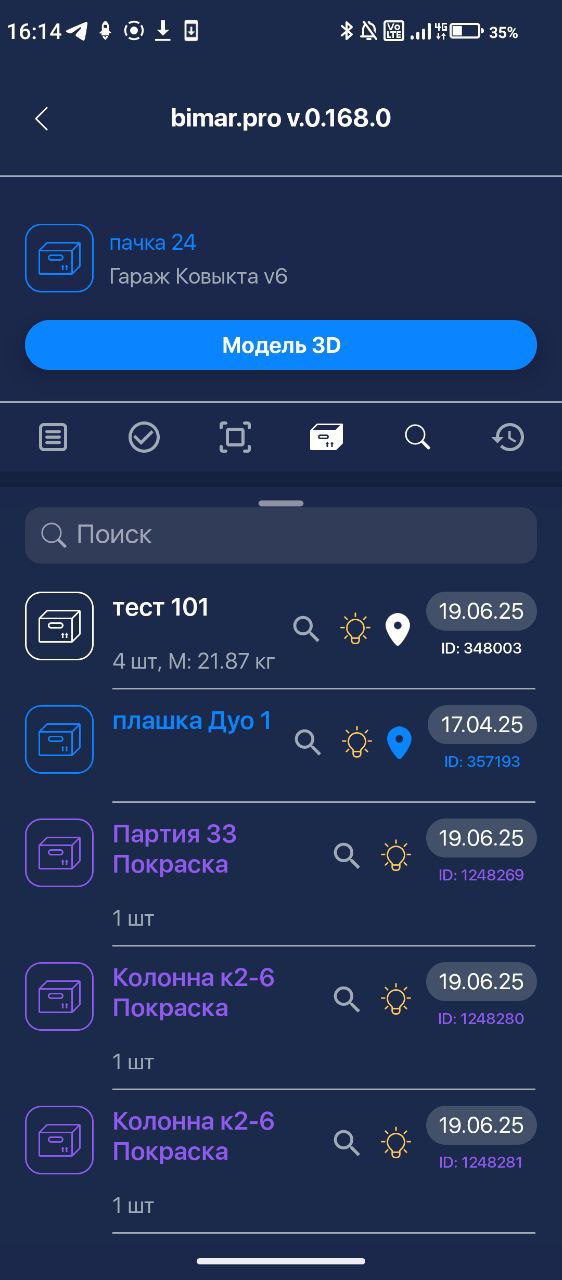
Packs and cells
A pack is a set of multiple parts.
How to create a new pack/cell?
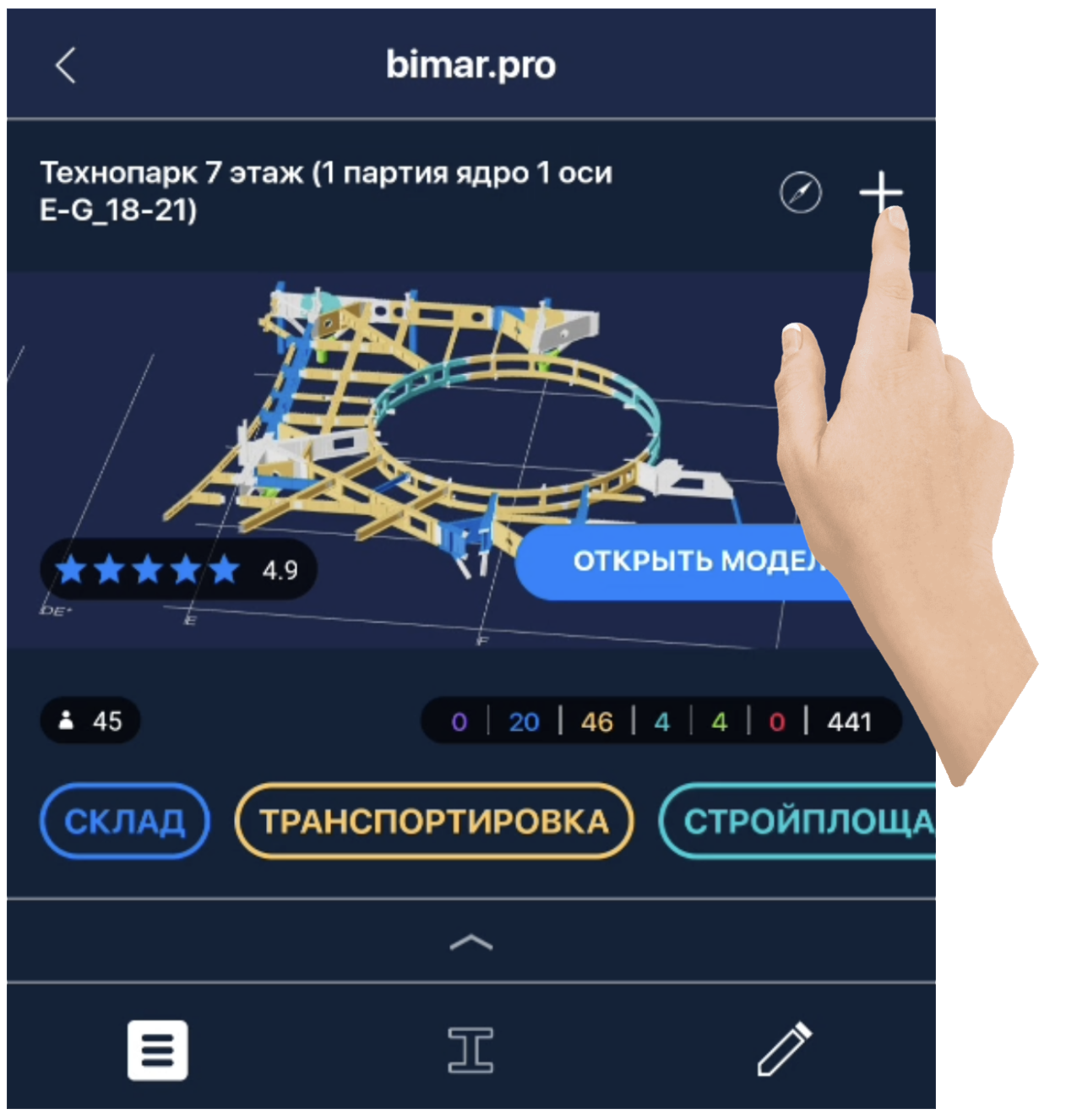
To create a new pack:
- Tap
 in an open project:
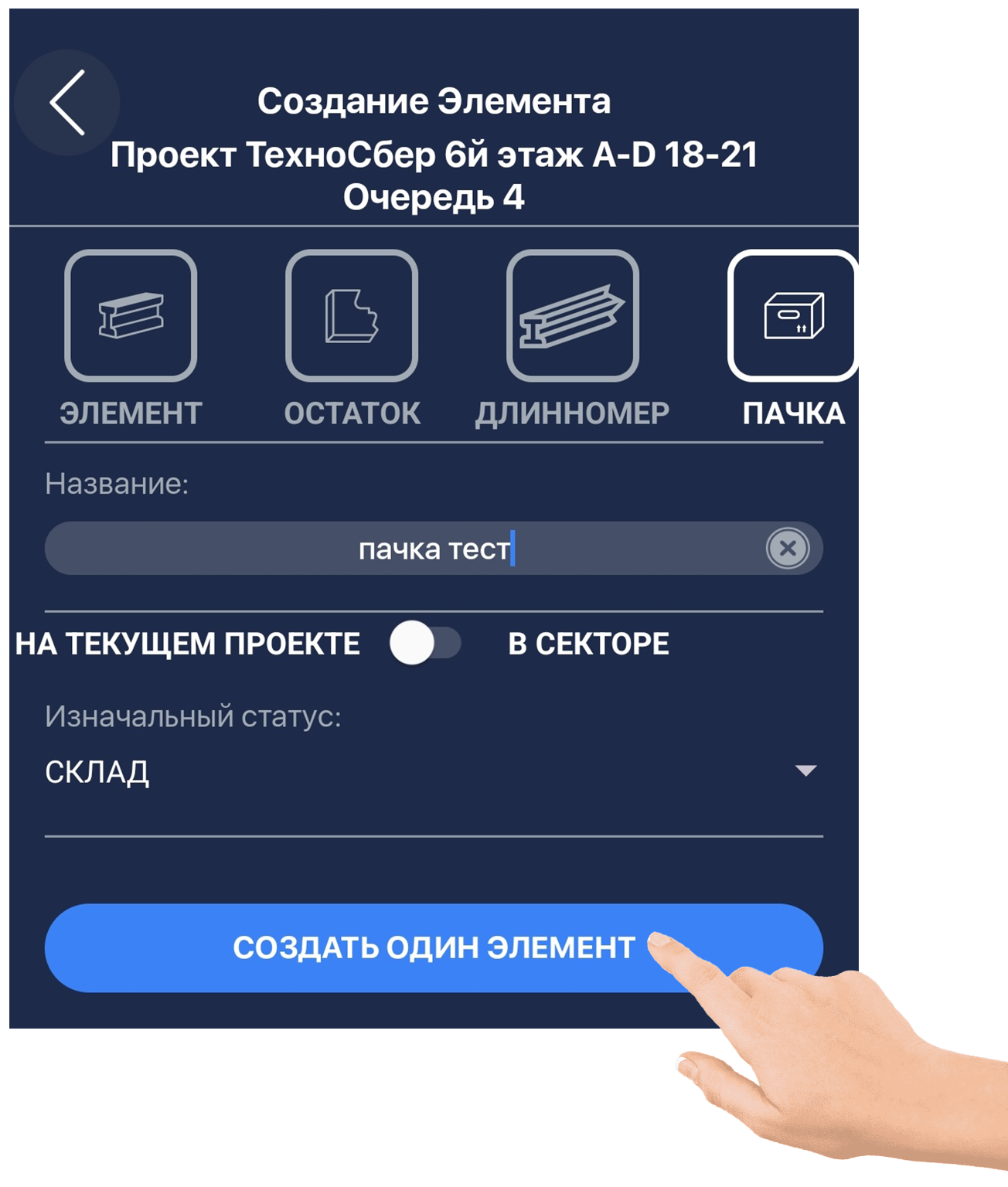
- In the element creation menu, select PACK or Cell and click CREATE ONE ELEMENT.
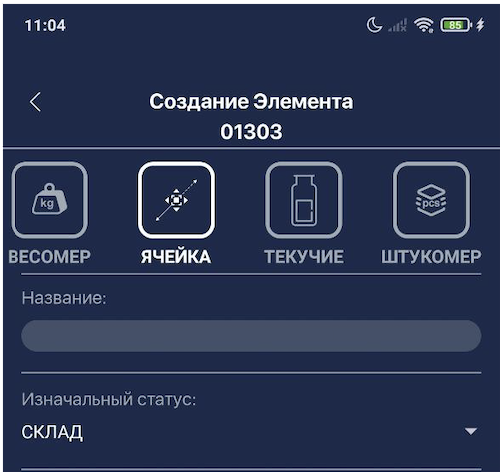
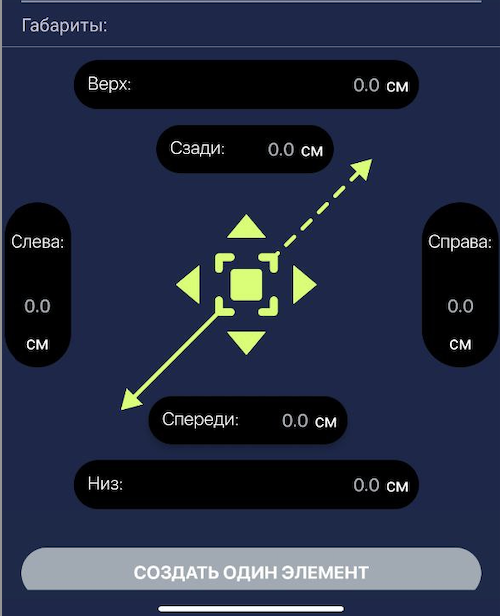
2.1 For a cell, fill in its dimensions
Dimensions of the cell are measured from the cell marker.
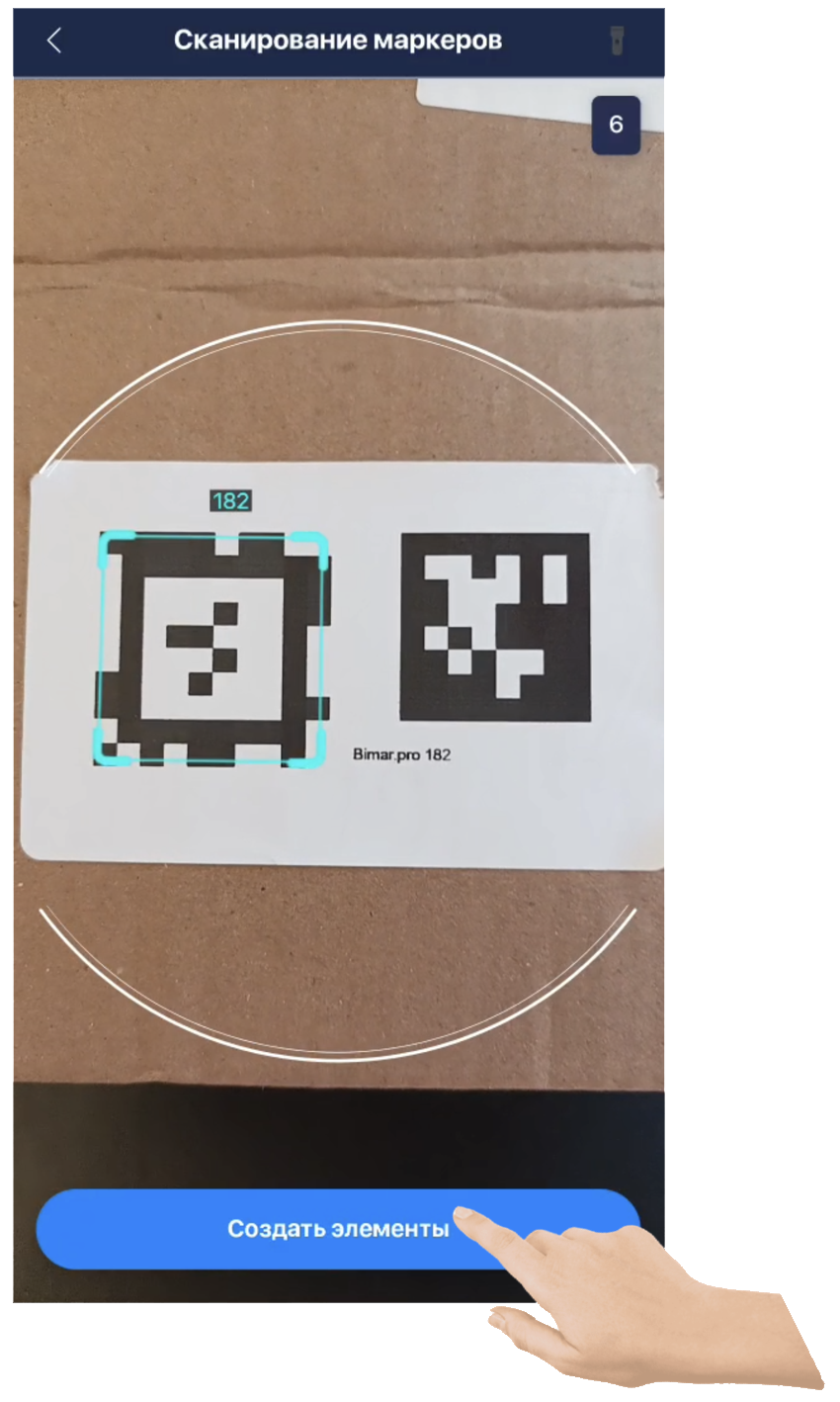
- In the scanner, point the camera at the marker and press CREATE ELEMENTS.
Video
How to add a part to a pack/cell?
- Open an existing pack and go to Parts in pack
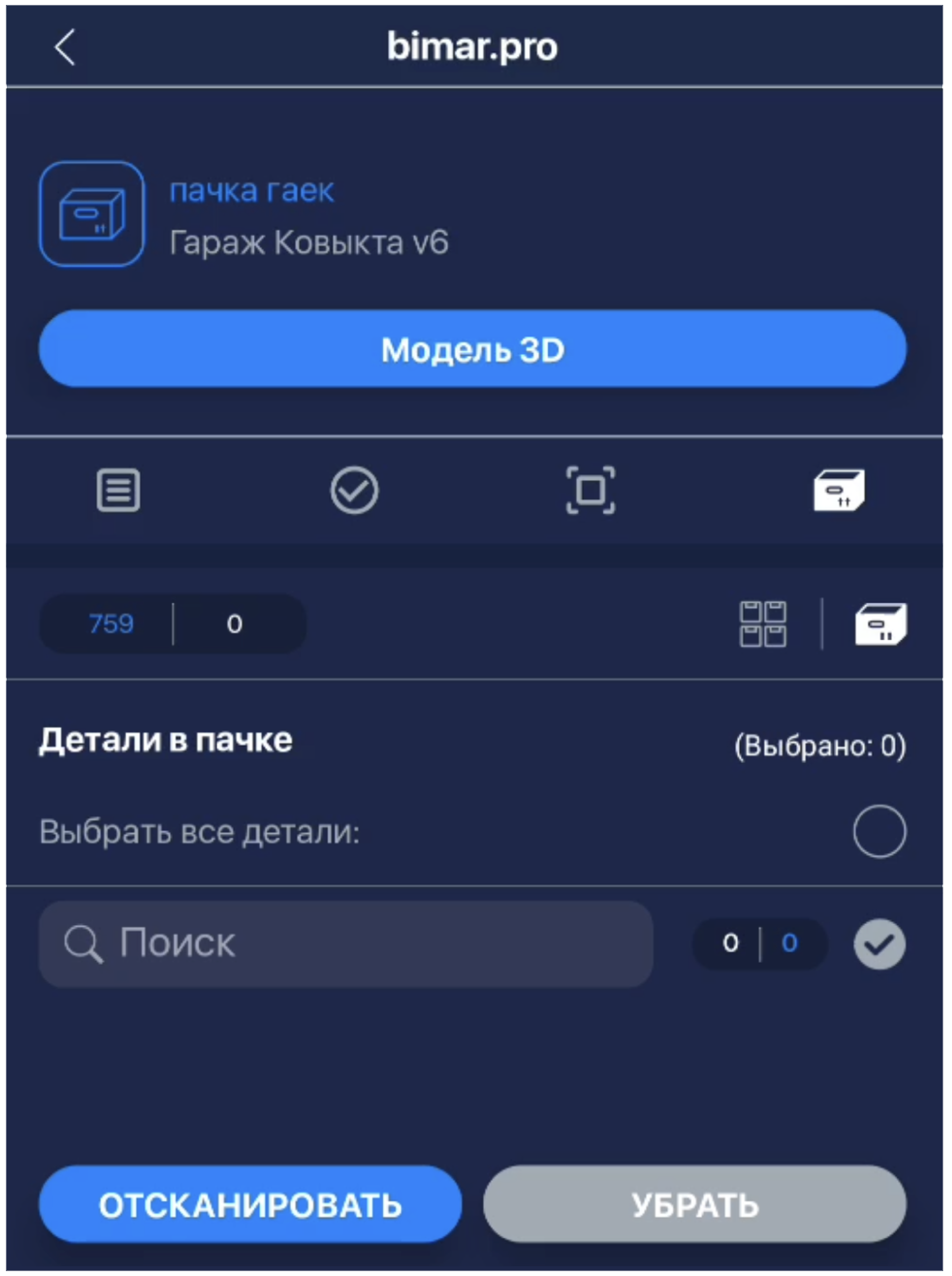
- You can add parts in two ways:
2.1. Scan the part marker by pressing Scan.
2.2. In the Parts in warehouse section  , select parts from the list and press Transfer.
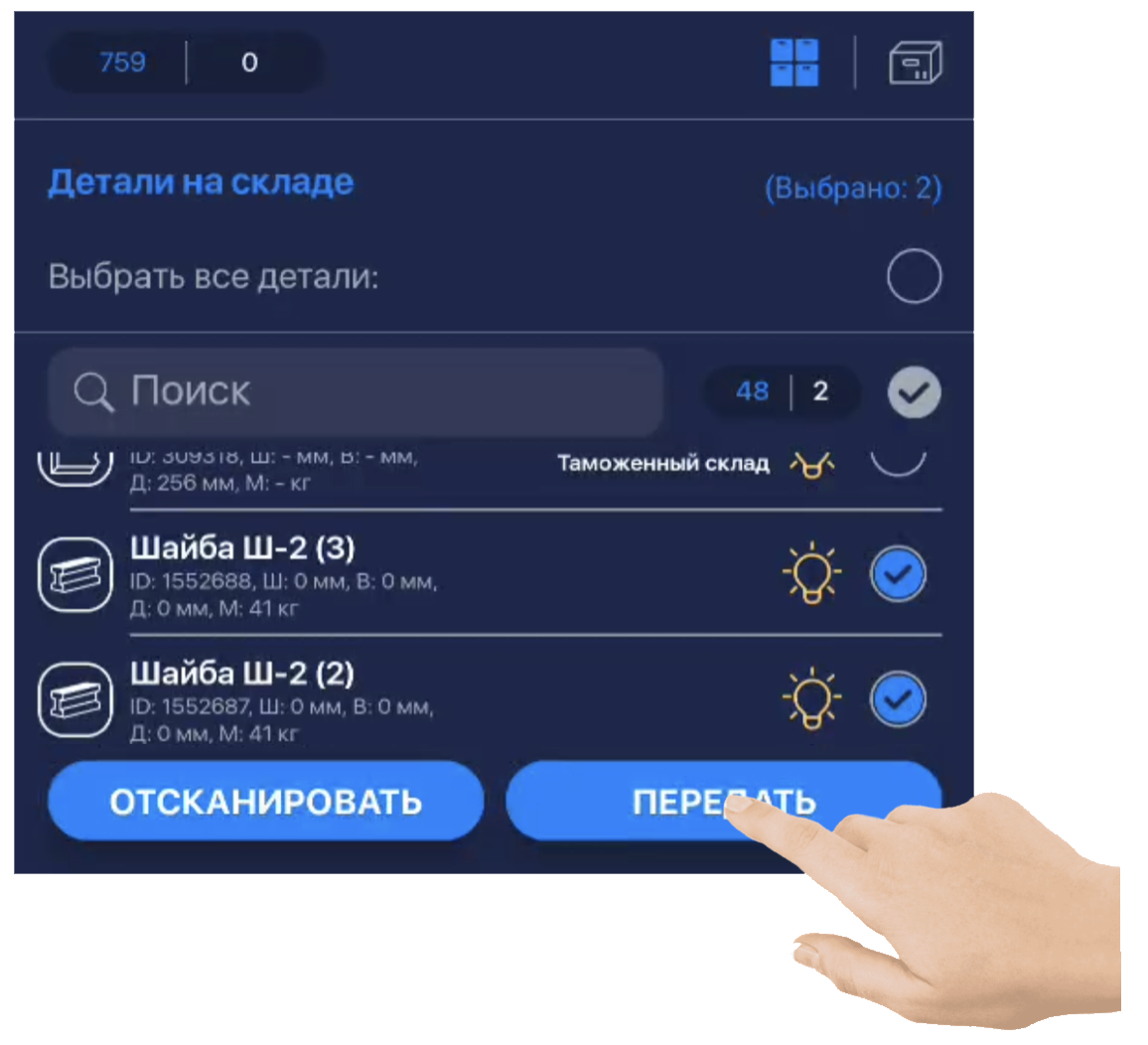
You can also add other packs or new parts to a pack.
Video
How to remove a part from a pack?
- Open an existing pack and go to Parts in pack

- Select the parts you want to remove and press Remove.
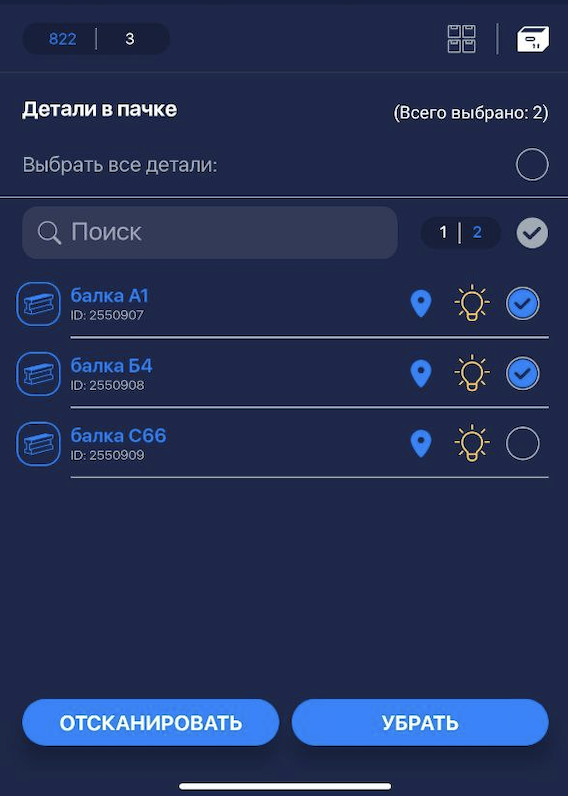
Video
Matching Mode
To enter matching mode, press  on the pack page.
New parts can be added to the pack:
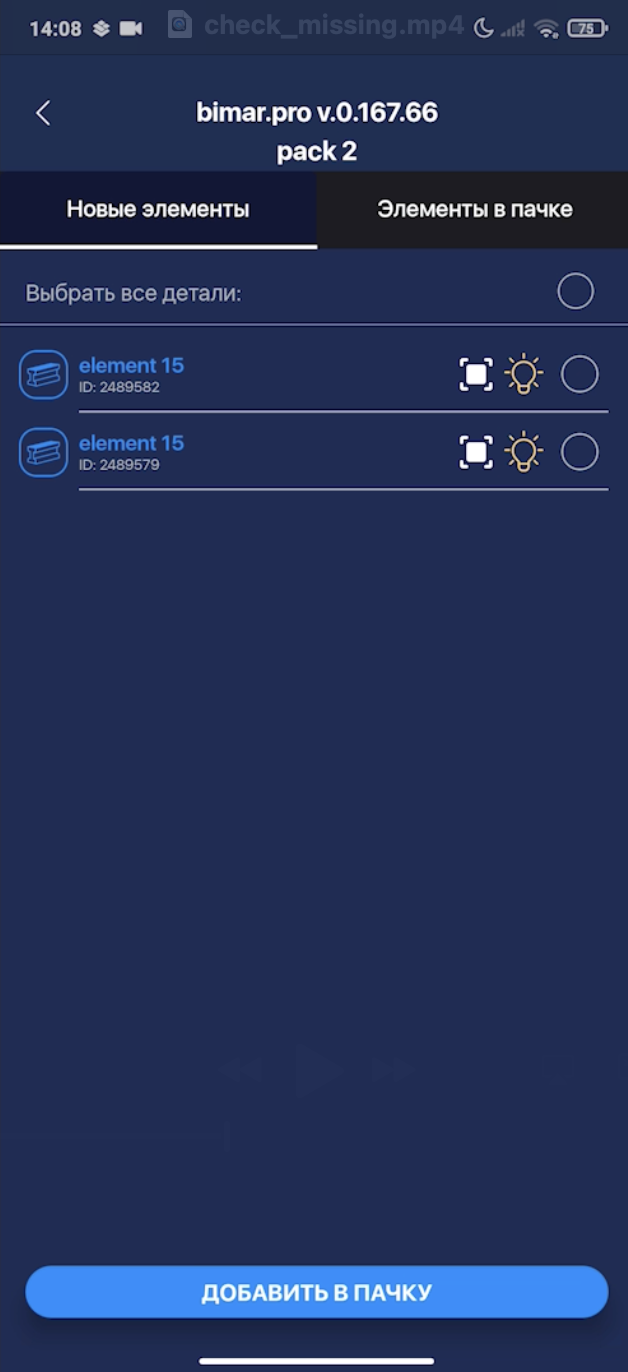
Missing parts are highlighted in red:
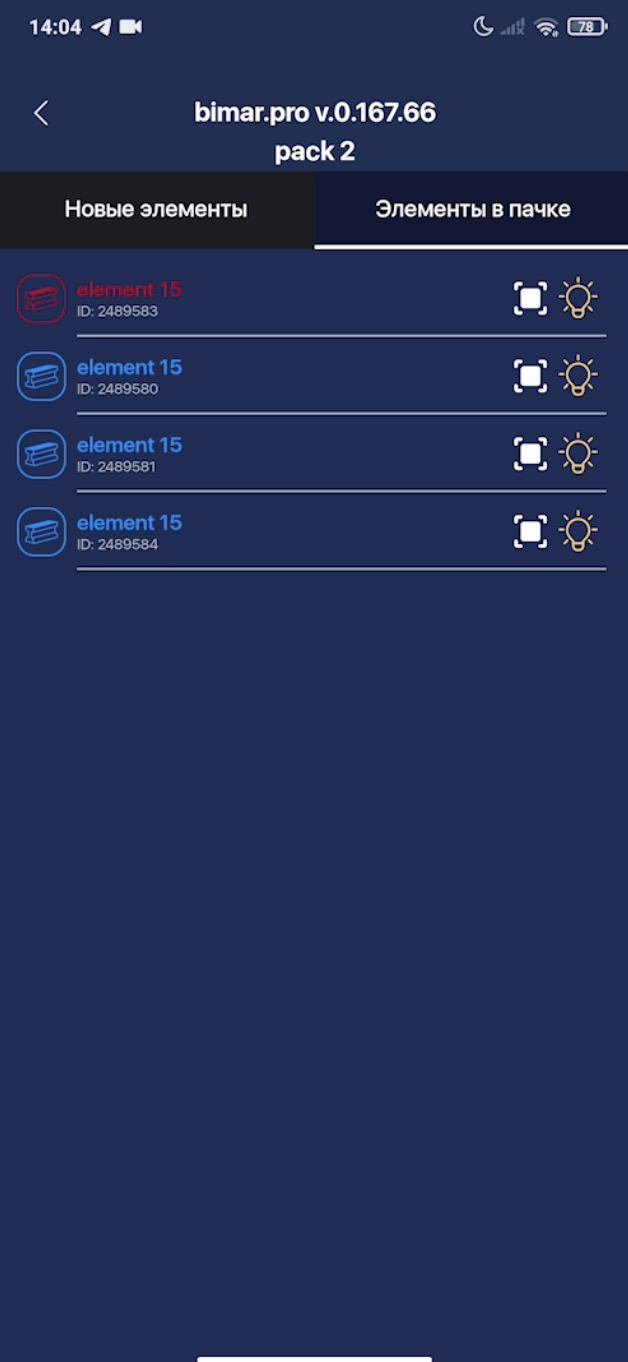
Video: Adding new parts
Video: Checking missing parts
Automatic placement into a cell
To automatically add a part to a cell, scan the part marker and the cell marker in the same frame so that the part marker is aligned with the previously set cell size.
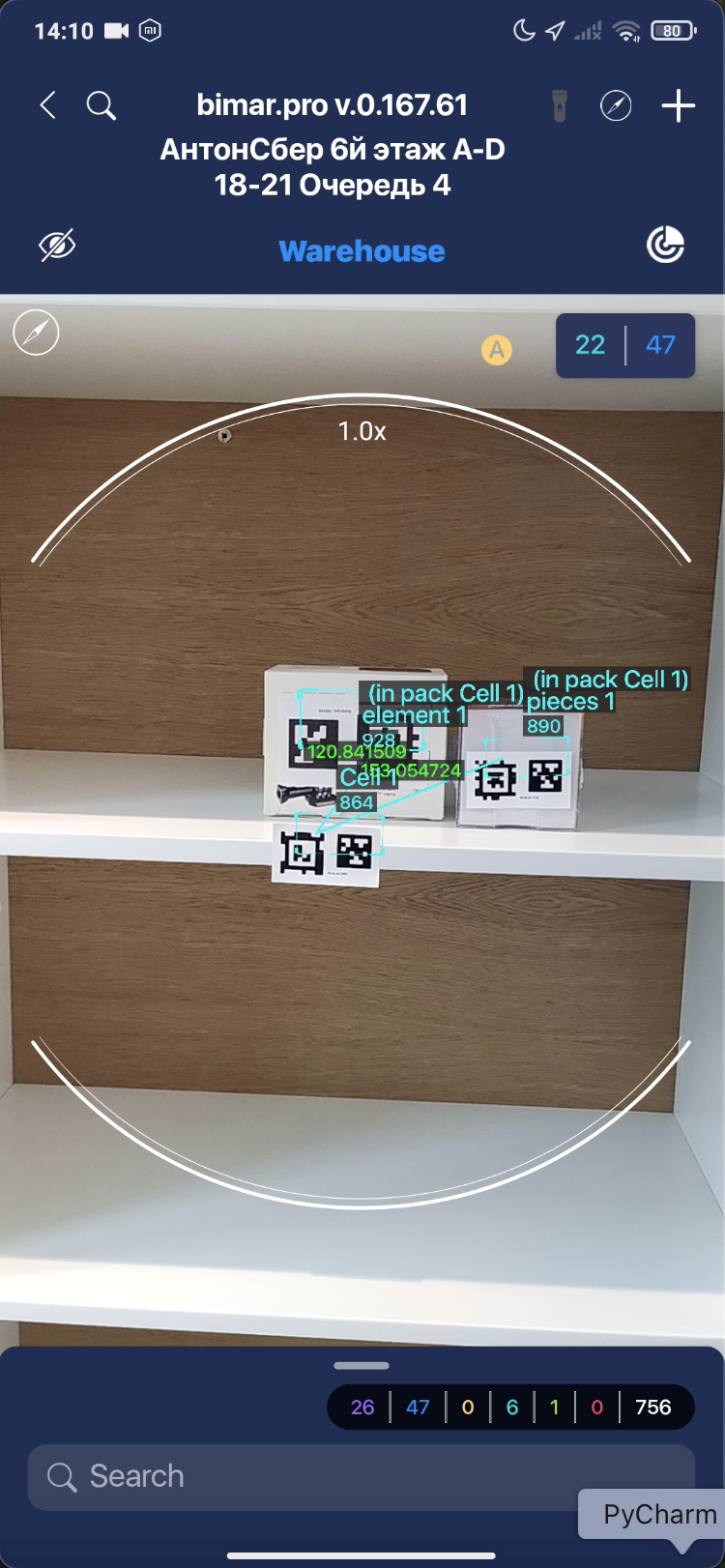
Video
Quick transfer between packs
- On the pack page, select elements and press Move.
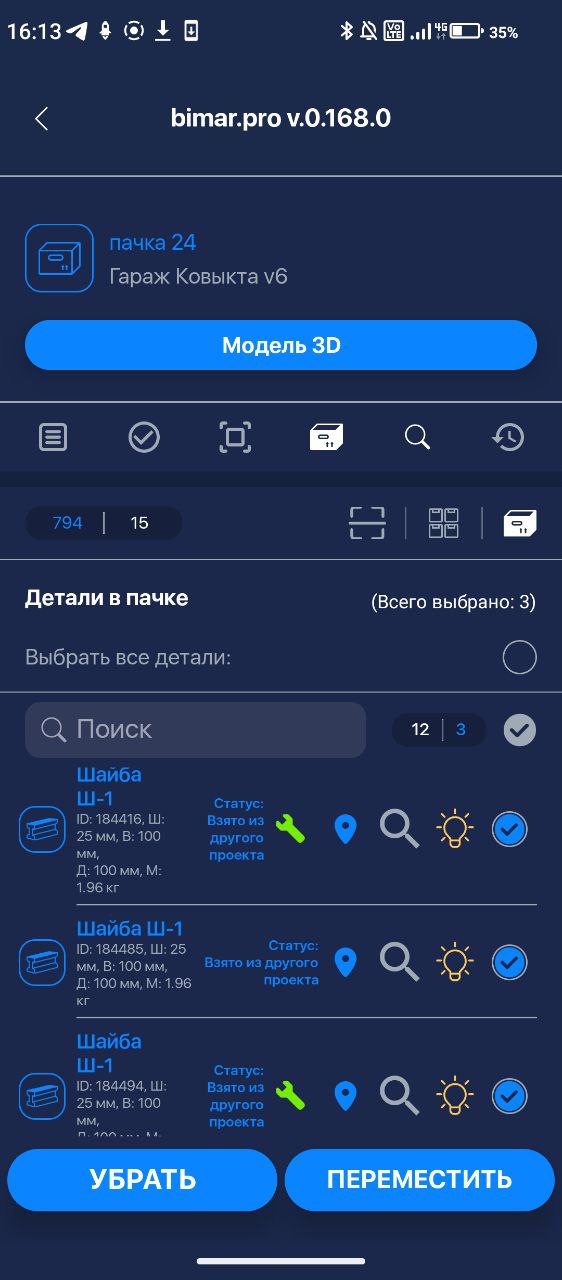
- Select the target pack: existing or new.
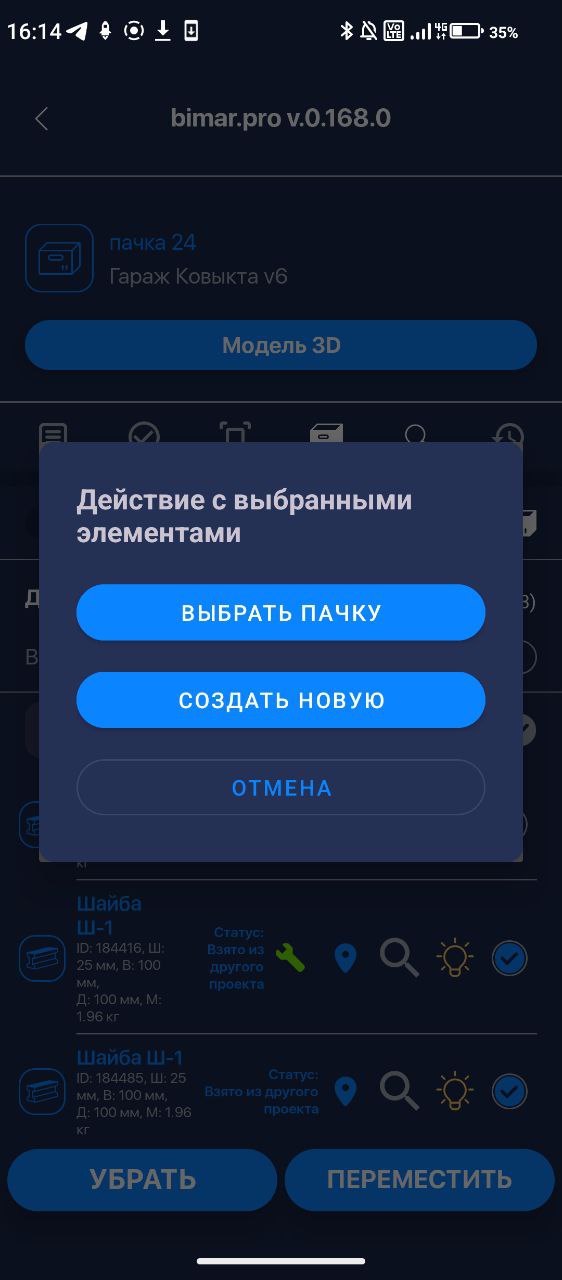
3.1 Selecting existing packs: