Sub-statuses
SECOND-LEVEL STATUSES
Second-level statuses (additional statuses) are statuses that can be assigned to an element independently of its main system status (“in warehouse,” “in transportation,” “on construction site,” etc.).
Second-level statuses can be added for all main statuses (warehouse, transportation, construction site, etc.).
The availability and configuration of second-level statuses are defined when the project is created.
❗️IMPORTANT❗️
If an element had no main status (was displayed in white) at the moment a second-level status was assigned, it automatically receives the “shop” status and appears in purple throughout the system.
To assign a second-level status:
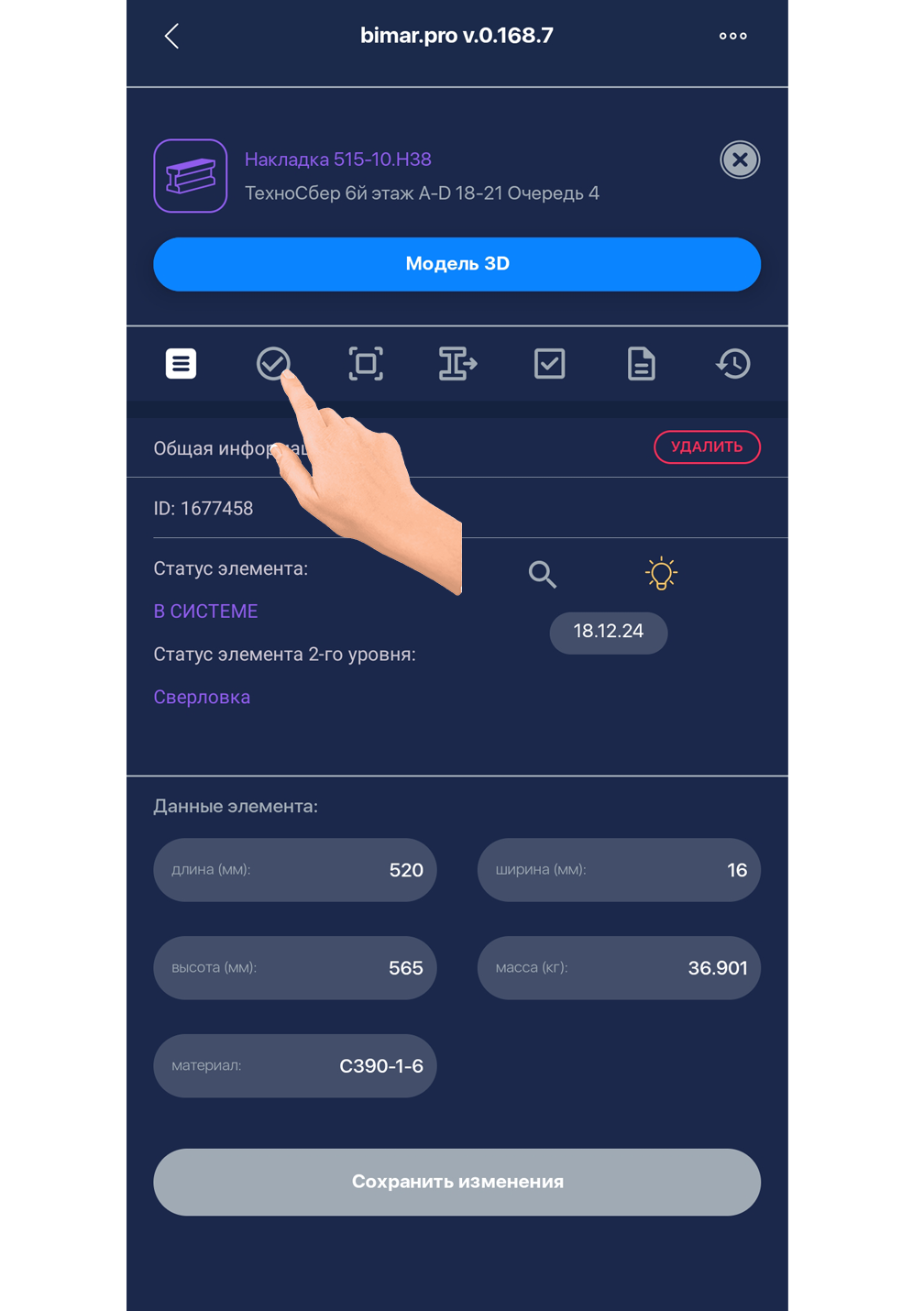
- Open the item details menu. Then go to “Second-Level Statuses” by tapping the button

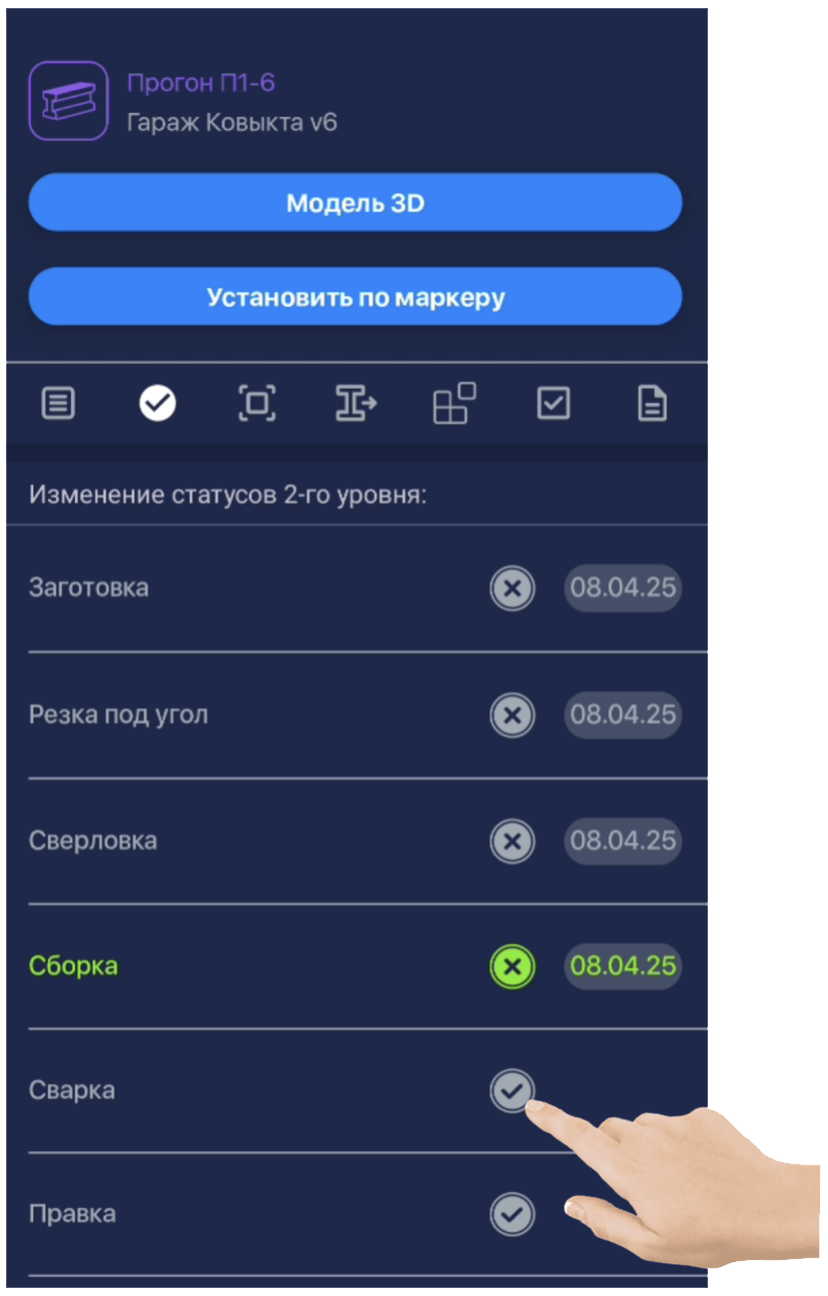
- In the list that opens, select the desired status for the element.
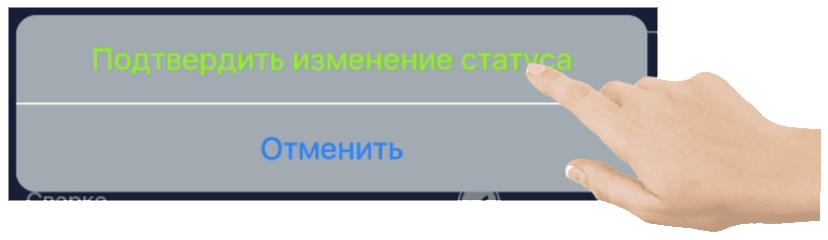
- Confirm the status change.
Along with the new status, the system also records the date and time it was assigned.
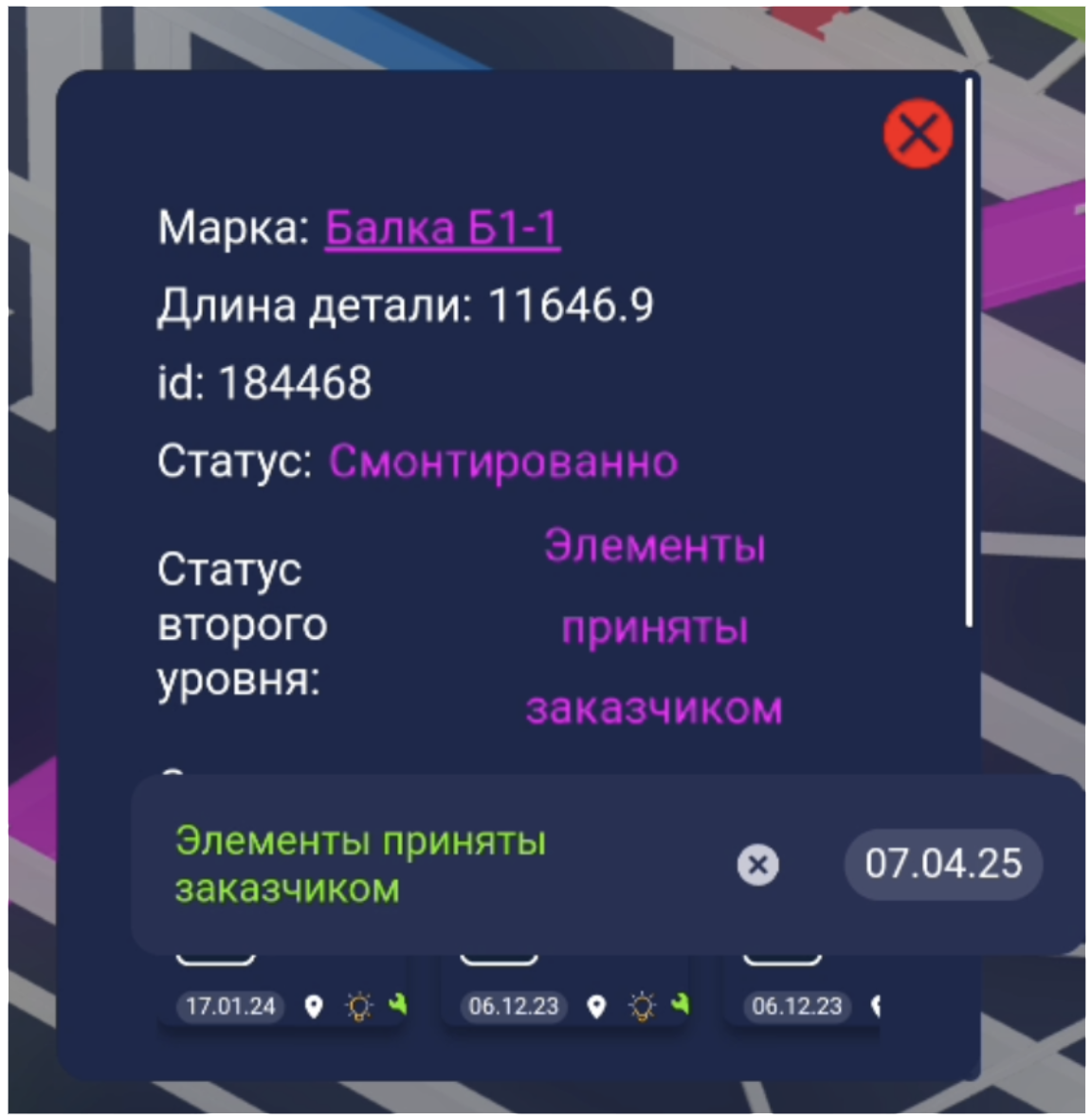
The date will be displayed to the right of the status.
Additionally, this status will appear next to the element’s name in the full element list.
The same actions can be performed via the element popup window on the project’s 3D model page.
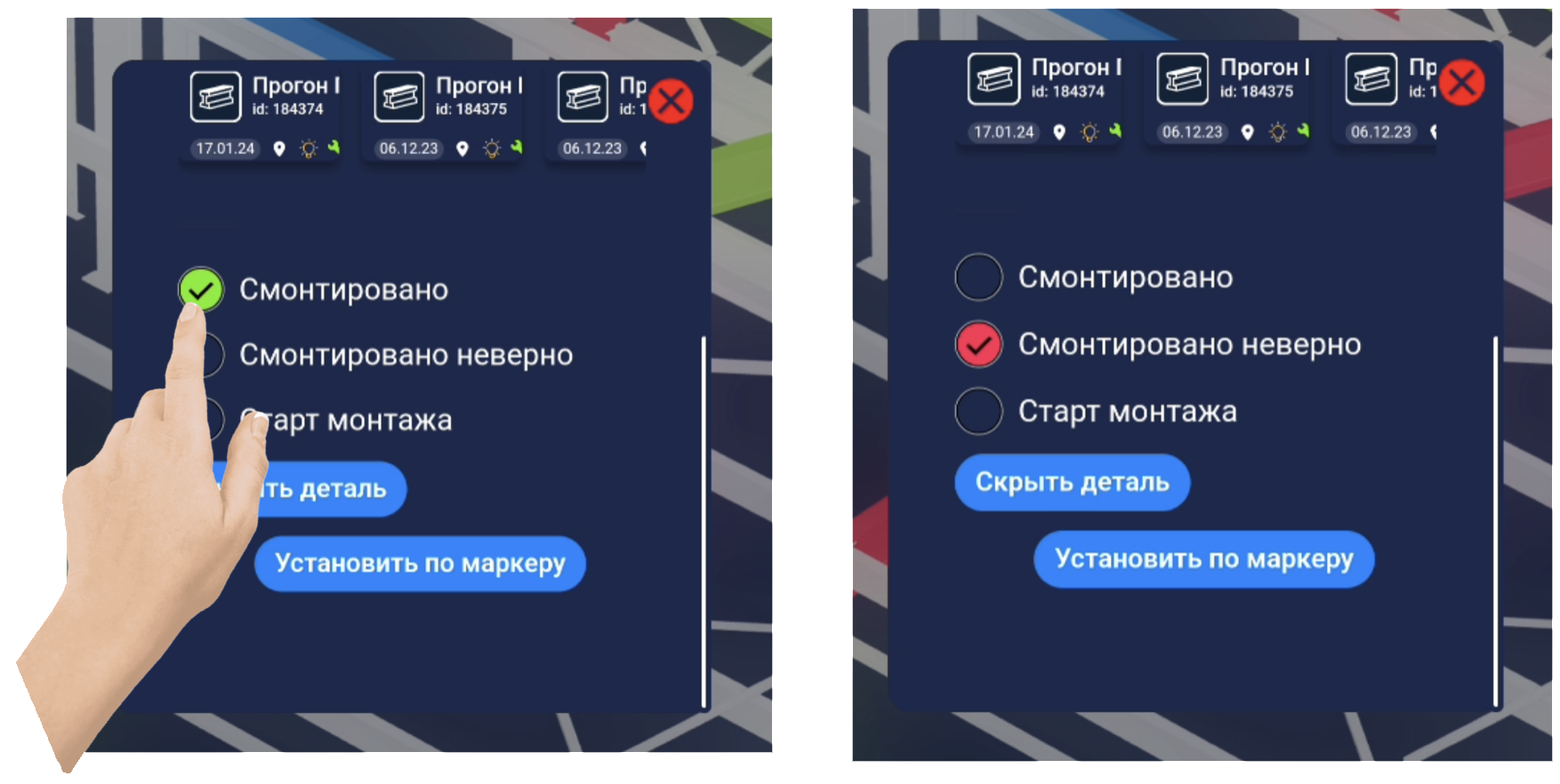
You can also assign a second-level status directly from the 3D model, which will change its color accordingly and record the assignment date.
❗️IMPORTANT❗️
Second-level statuses can also be modified for bundles.
If a bundle’s second-level status is changed, all its contained elements will inherit the same update.