Tasks
TASKS SECTION
In BimAR, you can create tasks assigned to specific items and specific users.
For example: a task to “install 3 Beam B1 elements” assigned to Alexander by 12/21/24.
Tasks are created in the web interface, while in the mobile app you can view them and mark them as completed.
On the project main page, the Tasks section is marked with the icon:
 .
.
Tapping it opens a list of tasks organized by modules: Warehouse, Production, Transit, Construction Site, Installation.
Next to each module, you will see the task counts:
- Pencil icon — number of incomplete tasks
- Checkmark icon — number of completed tasks
❗️IMPORTANT❗️:
A red circle next to the Tasks section shows the number of new (incomplete) tasks.
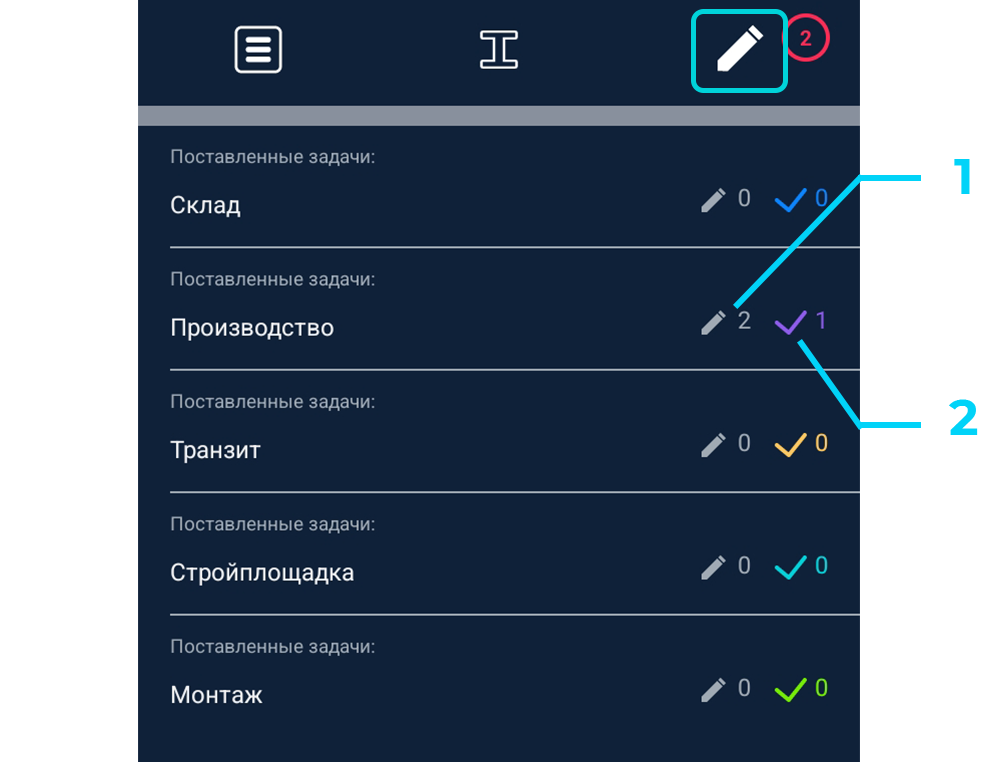
- Tasks assigned for execution
- Completed tasks
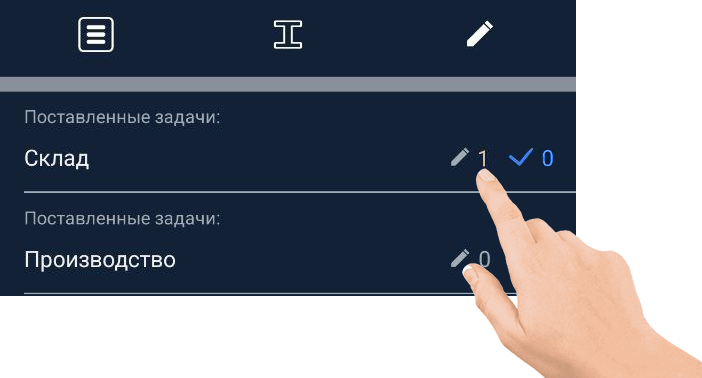
Tapping the Pencil icon opens the task list for a specific module.
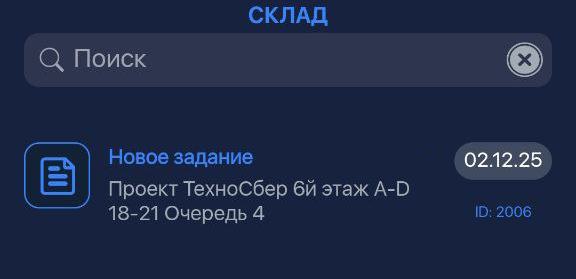
Opening a task displays:
- List of items in the task
- Simplified 3D model showing only the task items
- Axes used in the 3D model
- Usernames of assigned performers
- Task deadlines
- Task description (editable text) — enter your text and press SAVE. Your comment will be visible in the web interface and mobile app for other project members.
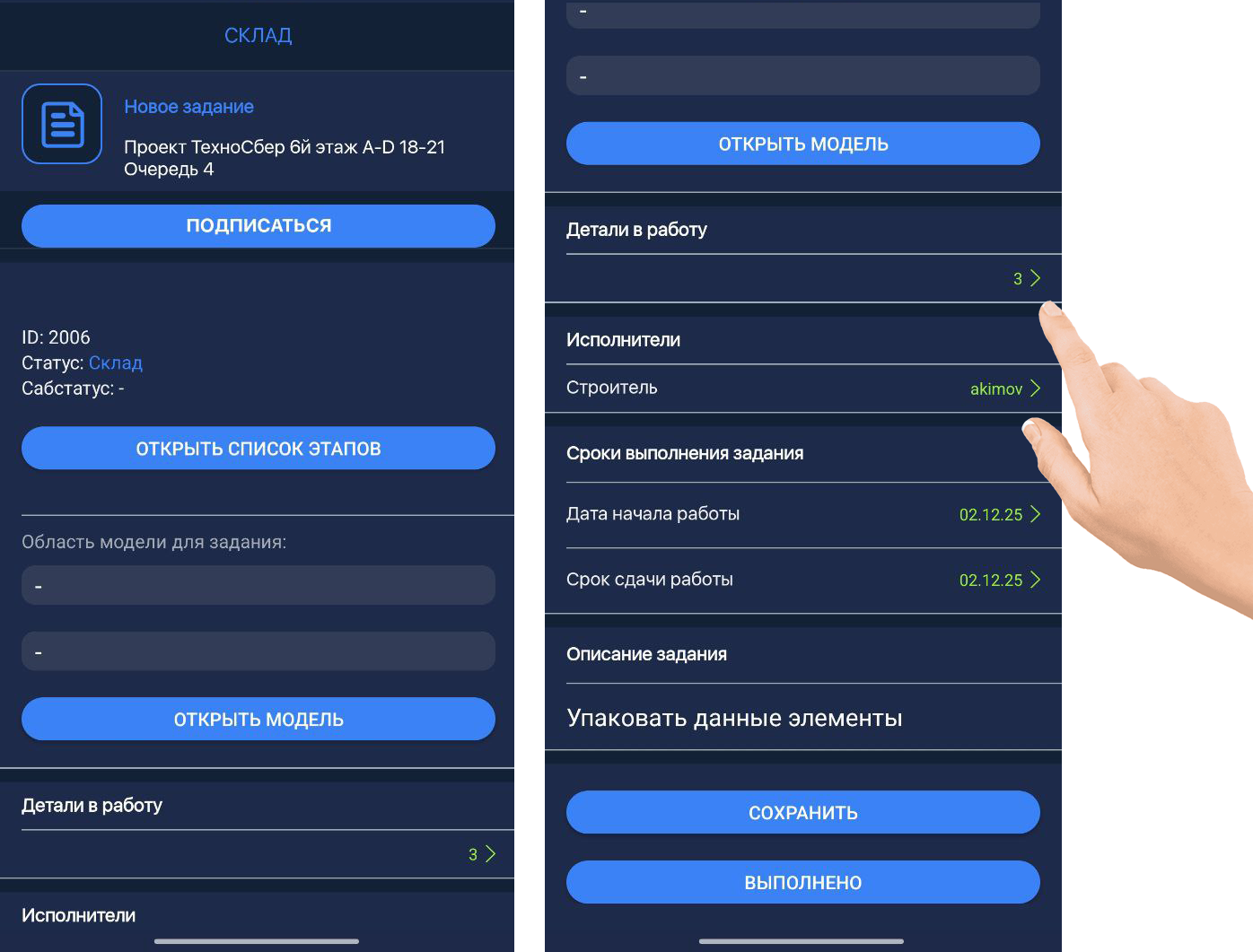
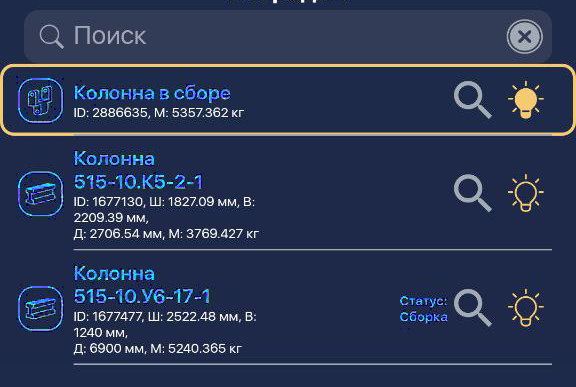
Tap “View Task Items” to see the items included in the task.
- If the task is not yet completed but you want to save the current progress, press SAVE
- If the task is completed, press COMPLETED, and all items will receive a status according to the task type.
For example: for an installation task, all items in the task will receive the installation status.