Project management
After creating or opening a project, you can manage it and verify the data before uploading it to the server.
Uploading the project to the server
Authorization
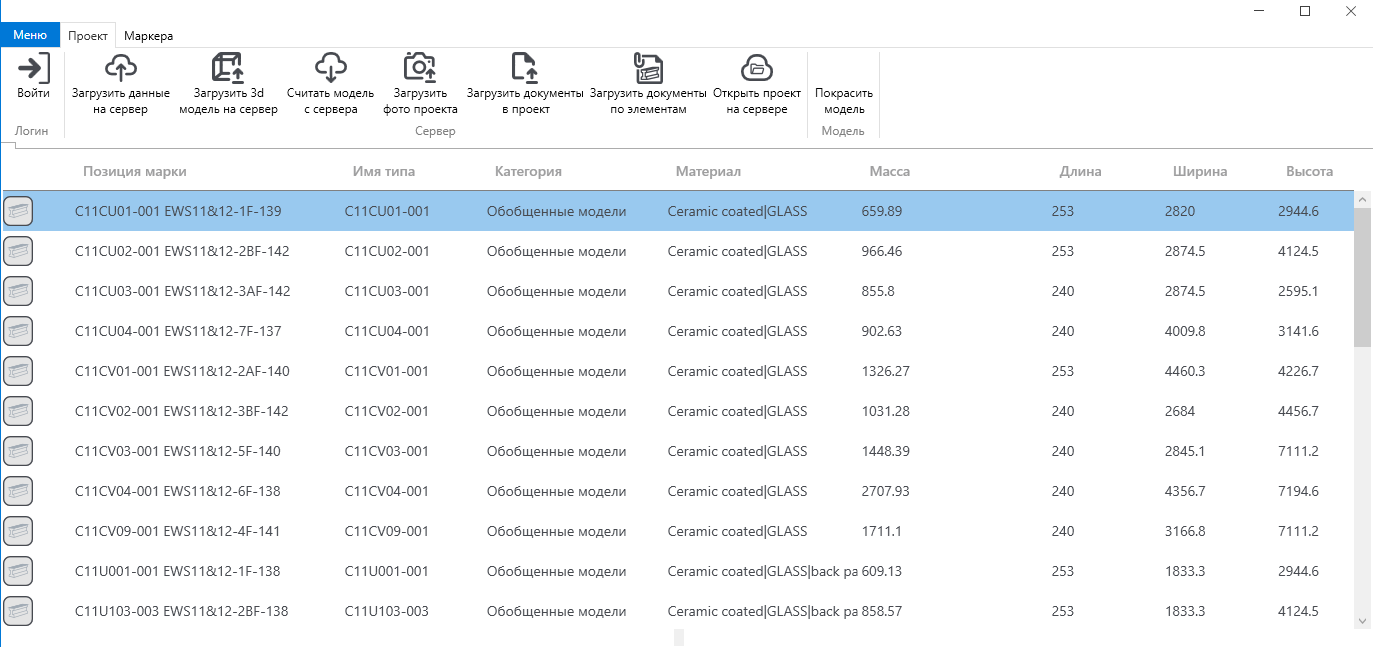
When launching the plugin for the first time, you must log in by clicking the ** button.“Entrance”**. The login and password are provided by the manager.
The download process
- Press the ** button"Upload the project"** to transfer the project data to the server
- Press the ** button"Upload a 3D model"** to upload a three-dimensional model
Additional features
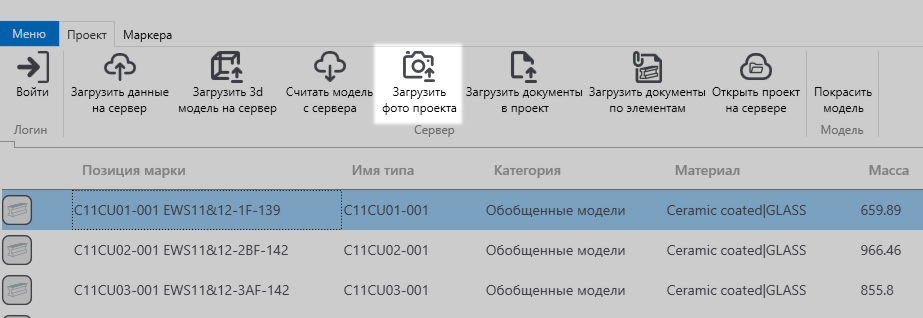
You can also upload the project cover by clicking “Upload a photo of the project”.
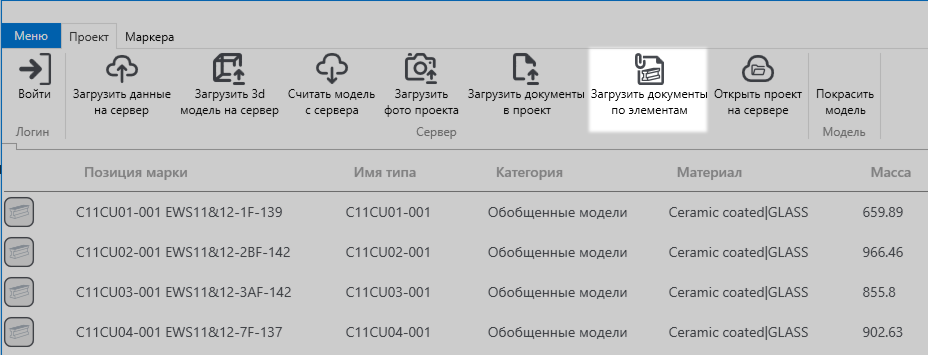
You can also upload documents element-by-element. To do this, click “Sync with the server”, and then add documents to each item manually or automatically via the ** button"Upload documents element-by-element"**, where the data will be compared through the item’s brand position.
After syncing the project with the server, you will have the opportunity to work in detail with each element. To do this, right-click on the line
