Additional fields
Setting up additional fields
This section is intended for configuring user fields used when working with a project.
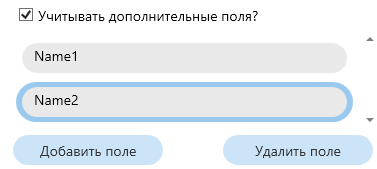
Functional activation
- Set the flag “Should additional fields be taken into account?” to enable the processing of user attributes in the data matching process
Field management
Adding fields
- Use the “Add Field” command to create a new text input field
- Each new field automatically receives a unique identifier (Name1, Name2, Name3…)
- Enter the column name from the original Excel spreadsheet in the corresponding text field
Deleting fields
- Select the required field by clicking on it (the active field is highlighted with a blue border)
- Activate the command “Delete the “” field to remove the selected item from the configuration
Filling requirements
- The names of the fields must correspond exactly to the column headings, taking into account the case